
A lightweight terminal UI for Docker. Manage containers, images, volumes, and networks from your terminal — Compose-aware, no mouse required.


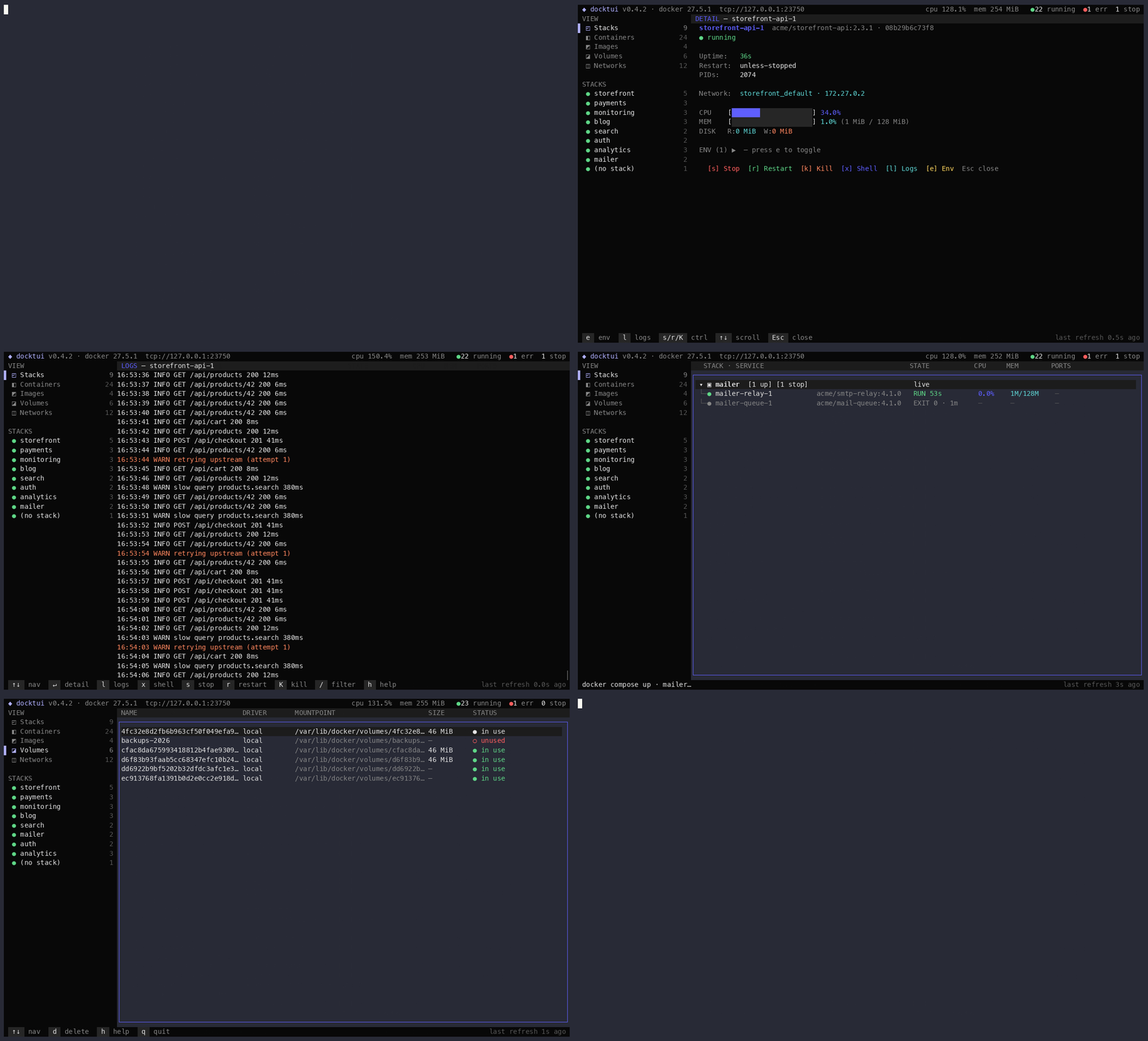
Run it without installing:
npx docktuiOr install globally:
npm install -g docktui
docktui
Releases are published to npm from GitHub Actions with provenance (npm audit signatures verifies them).
- Compose-aware Stacks view — containers grouped by project with running / errored / stopped counts, collapsible per stack;
u/d/r/p/Brundocker compose up/down/restart/pull/up --buildon the selected stack. - Containers / Images / Volumes — live CPU and memory stats (memory as a percentage or used / limit, toggled with
m), start / stop / restart / kill / remove with confirm dialogs. - Networks — list Docker networks with driver, scope, attached-container count, creation time, and in-use status; remove unused networks (built-in networks and any with attached containers are protected).
- Detail panel — full metadata, mounts, environment, live CPU/MEM bars.
- Streaming log viewer with follow mode, scrollback cap, and color-coded stdout/stderr.
- Filter — press
/from Stacks to filter by stack, service, or image name. - Side rail navigation —
1–5orTabcycles views; click a live stack to jump to it. - Help overlay — press
hanywhere (except confirm dialogs / the stack filter) to toggle the key-binding reference. - Shell into containers —
xopens an external terminalexec'd into the selected container (macOS Terminal, Windows Terminal, common Linux emulators). - Themes and a config file: four built-in themes (
default,nord,gruvbox,dracula), your own colors on top, the view to open, the memory display and refresh rates, all in~/.config/docktui/config.tomlor as flags. - Honors
DOCKER_HOST— works with rootless Docker, podman, and remote daemons.
- Node.js 20 or later
- A running Docker daemon (Docker Desktop on macOS/Windows, Docker Engine on Linux, or any podman/rootless setup)
- A 256-color or truecolor terminal (
TERM=xterm-256colororCOLORTERM=truecolor)
docktui reads $XDG_CONFIG_HOME/docktui/config.toml at startup (~/.config/docktui/config.toml when XDG_CONFIG_HOME is not set, on every OS). The file is optional; every key has a default.
theme = "nord"        # default, nord, gruvbox, dracula
view = "containers"   # stacks, containers, images, volumes, networks
memory = "absolute"   # percent, absolute (used of limit)

[refresh]             # polling intervals in seconds (1 to 3600)
containers = 5
resources = 10        # images, volumes, networks
stats = 2

[colors]              # your own colors, on top of the theme
accent = "#ff79c6"
bg = "#1e1e2e"
An invalid file, value or unknown key falls back to the default for that part and shows a message in the footer (and on stderr).
| Theme | |
|---|---|
default |
The original docktui palette |
nord |
Nord colors |
gruvbox |
Gruvbox dark |
dracula |
Dracula |
Any key below can be set in [colors] as a "#rrggbb" hex color: bg, bgSoft, panel, bgSel, bgSelEdge, fg, dim, faint, rule, rule2, accent, purple, green, aqua, yellow, orange, red, pink.
| Flag | |
|---|---|
-c, --config <path> |
Read another config file (it must exist) |
--theme <name> |
Theme for this run |
--view <name> |
View to open |
--memory <mode> |
percent or absolute |
-h, --help |
Show the flags |
-v, --version |
Show the version |
Flags override the config file, which overrides the defaults.
docktui auto-detects the daemon socket. To point it elsewhere, set DOCKER_HOST:
DOCKER_HOST=unix:///run/user/1000/docker.sock docktui          # rootless docker
DOCKER_HOST=unix:///run/user/1000/podman/podman.sock docktui   # podman
DOCKER_HOST=tcp://10.0.0.5:2375 docktui                        # remote daemon
DOCKER_HOST=npipe:////./pipe/docker_engine docktui # Windows named pipeRequires the docker CLI to be on your PATH. docktui launches your platform's native terminal with docker exec -it <id> sh (falls back to bash if available inside the container).
| Key | Action |
|---|---|
1 – 5 |
Jump to Stacks / Containers / Images / Volumes / Networks |
Tab / Shift+Tab |
Cycle views |
h |
Toggle help overlay |
m |
Memory column: percent (31.4%) / used of limit (1.2G/16G) |
q / Ctrl+C |
Quit |
| Key | Action |
|---|---|
↑ ↓ / j k |
Navigate tree |
→ / ← |
Expand / collapse stack |
Enter |
On a stack: toggle expand. On a service: open detail panel |
u / d |
On a stack: docker compose up -d / down (confirm) |
r / p / B |
On a stack: docker compose restart / pull / up --build -d |
/ |
Open filter (Esc to clear) |
l |
Open log viewer |
x |
Shell into selected running container |
s / r / K |
On a service: stop / restart / kill running container (confirm) |
S |
On a service: start stopped container |
d |
On a service: remove stopped container (confirm) |
Compose verbs run the docker CLI against the project's directory and compose files (read from the containers' Compose labels), so the files must be on this machine. A stack you take down stays in the tree, marked down, so u brings it back.
Same per-container actions as Stacks. Enter always opens the detail panel.
Same container actions as the list/tree (l, s, r, K, S, d, x) plus:
| Key | Action |
|---|---|
e |
Toggle environment variables (expanded / collapsed) |
↑ ↓ |
Scroll |
Esc |
Close |
| Key | Action |
|---|---|
f |
Toggle follow mode |
g |
Scroll to top |
G |
Scroll to bottom, re-enable follow |
↑ / k |
Scroll up (disables follow) |
Esc |
Close |
| Key | Action |
|---|---|
↑ ↓ / j k |
Navigate list |
d |
Delete unused item (confirm) |
Networks additionally protect the built-in bridge / host / none networks and any network with attached containers — d on those shows a message instead of a confirm dialog. In-use detection is consistent with Images and Volumes: a network counts as in use whenever a container is attached, running or stopped.
y / Y to confirm · n / N / Esc to cancel |
|---|
Add your user to the docker group, then log out and back in:
sudo usermod -aG docker $USERBy default docktui tries the named pipe //./pipe/docker_engine. If that fails, enable TCP in Docker Desktop (Settings → General → Expose daemon on tcp://localhost:2375 without TLS) and run:
DOCKER_HOST=tcp://localhost:2375 docktuiYour $TERM is too narrow. Set it explicitly or use a modern terminal:
TERM=xterm-256color docktuiYou hit x (shell into container) but the docker binary isn't installed or isn't on PATH. Install Docker CLI or skip the x action — everything else works without it.
git clone https://github.com/0xShady/docktui.git
cd docktui
npm install

npm run dev            # run from source with ts-node
npm run dev:watch      # same, restarting on changes in src/
npm run build          # compile to dist/
npm start              # run compiled output

npm test               # vitest, one-shot
npm run test:coverage  # generate ./coverage/index.html
npm run lint
npm run format
See CONTRIBUTING.md for the pre-PR checklist and how releases work, and CHANGELOG.md for release history.
MIT © Achraf El Fadili