
An automated, pipeline-friendly batch importer and organizer for Unreal Engine 5 built around standard studio naming conventions. Stop importing assets one-by-one; AssetPort automates category routing, texture configuration, material instance generation, Smart Nanite evaluation, and one-click animation import with automatic retargeting to any project character.



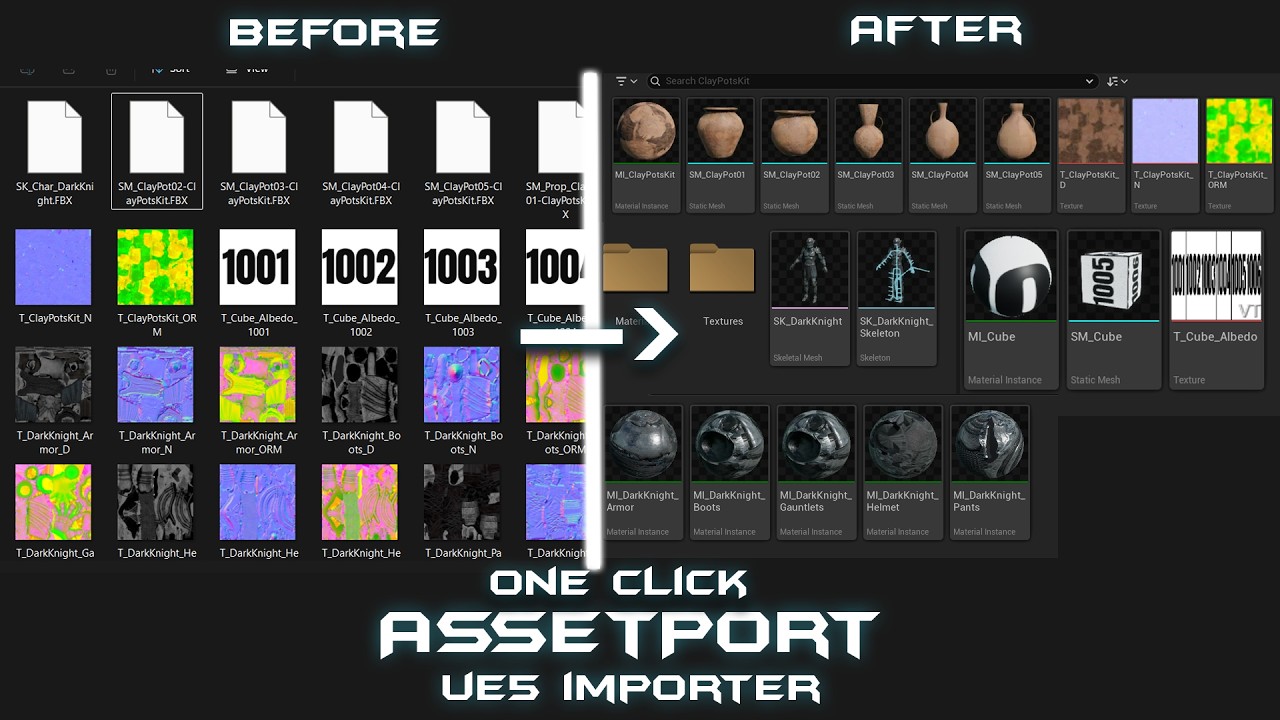
-
📦 Smart Batch Importing: Import meshes FBX and textures (PNG, TGA, EXR, JPG) recursively from any source folder.
-
📂 Automated Organization: Auto-detects asset category prefixes (e.g.
_env_,_wpn_,_prop_) and organizes them into clean, structured subfolders inside Unreal’s Content Browser. -

-
🎨 Automatic Material Instances (MI): Automatically generates Material Instances derived from a custom Master Material.
-
🔗 Dynamic Parameter Wiring: Detects texture suffix tags (e.g.
_N,_ORM,_Albedo) and plugs them into the corresponding slot of the Material Instance with the correct sRGB and Compression Settings (like TC_Normalmap and TC_Masks). -
⚙️ ORM/Packed Map Switch: Automatically detects Packed ORM maps and activates the material instance's
"UseORM"static switch. -
🟢 Mesh Auto-Link: Automatically assigns the newly generated Material Instance to Slot 0 of the imported Static/Skeletal Mesh.
-
⚡ Responsive Progress Dialog: Displays a cancellable progress bar via
unreal.ScopedSlowTaskduring saves and material compilation, preventing editor hangs on large batches. -
👁️ Interactive Preview Mode (Dry Run): Run a simulation scan to view the proposed folder routing and clean asset tree in a dedicated EUW window (
EUW_AssetPort_Preview) before performing an actual import. -

-
💎 Automated Transparency & Blend Mode Management: Auto-detects alpha channels in Base Colour textures (PNG, TGA, EXR) and launches an interactive EUW popup (
EUW_TransparencySetup) for artists to select Blend Modes (MaskedvsTranslucent). Automatically assignsM_Master_MaskedorM_Master_Translucentand configuresUseBaseColourAlphaswitches. -

-
🎭 Multi-Material Slot Detection & Subfolder Routing: Automatically detects assets with multiple material slots (e.g.,
T_Chair_Metal_D,T_Chair_Wood_D). Generates per-slot Material Instances (MI_Chair_Metal,MI_Chair_Wood), links each to its corresponding static mesh slot, and routes assets into/Materials/and/Textures/subfolders. Single-material assets remain 100% flat! -

-
🧩 UDIM & Virtual Texture Support: Automatically detects UDIM tile sequences (
_1001to_1999) and 4K Auto-VTs, routes them to dedicated Virtual Texture parameters, and displays tile counts inline in the Preview window ([UDIM: 6 Tiles]). -
🏺 Atlas & Modular Kit Detection: Automatically detects kit-based asset groups using hyphen delimiters (e.g.
SM_Rock01-RockKit.fbx). Unifies all kit meshes under a flat folder (/Game/Environment/RockKit/), cleans asset names on import (SM_Rock01), shares a single Material Instance (MI_RockKit) across all meshes at slot 0, and badges kit summaries in the Preview UI ([Atlas: X Meshes]). -
📐 Static Mesh LOD Import: Imports LOD groups embedded in one FBX and attaches separately exported
_LOD0,_LOD1, ... FBX files to regular or Atlas Static Meshes. -
⚡ Smart Nanite Automation: Intelligently evaluates mesh polygon counts against a configurable threshold (default: 2,500 triangles). Automatically enables Nanite for dense opaque meshes while preserving traditional LOD chains and non-Nanite transparent materials.
-
🎬 Smart Animation Ingestion: Auto-detects animation FBX files (
a_,anim_, or prefix-less tracks), enforces mesh-first ordering so skeletons bind cleanly, and extracts tokens like_RMto auto-enable Root Motion. Launches an interactive dialog (EUW_SkeletonSetup) to map standalone animation packs to existing project skeletons. -
🔄 Automated IK Retargeting: Instantly transfers imported animations onto Manny, Quinn, or any project character with zero manual setup. Automatically generates IK Rigs, maps bone chains, and recognizes 23 industry rig types out of the box (see full supported rig list). Ensures natural finger posing with no twisted knuckles and dynamically scales character height to eliminate foot sliding and floor clipping.
To install AssetPort, place the script files and assets inside your Unreal Engine project's Content/Python directory.
- Clone or Download this repository.
- In your Windows File Explorer, navigate to your Unreal project's directory and go to:
YourProject/Content/Python/(Create thePythonfolder if it doesn't exist). - Copy the following folders and files into
YourProject/Content/Python/:asset_port/(Python core pipeline)Materials/(Master Materials:M_Master_Opaque,M_Master_Masked,M_Master_Translucent)Widgets/(Editor Utility Widgets & Row Widgets)importer_config.jsoninit_unreal.py
- Start (or restart) Unreal Engine. The AssetPort buttons will automatically load in your Content Browser's main Toolbar and Context Menu.
Note
Make sure Python Foundation Scripting and Editor Scripting Utilities plugins are enabled in your Unreal Engine project settings.
Note
UE 5.3 Support Dropped: Starting with version 1.7.0, support for Unreal Engine 5.3 has been dropped due to modern IK Retargeter Python APIs requiring UE 5.4+. If your project is on UE 5.3, please use AssetPort v1.6.1.
- Click the AssetPort button on the Content Browser Toolbar, or right-click anywhere in the Content Browser and select AssetPort.
- Click Browse and select a folder on your computer containing the meshes and textures you want to import.
- Select an option from the Category Dropdown:
- Auto-Detect (Recommended): Auto-detects categories based on file prefixes.
- Weapons/Environment/Props/Characters/Vehicles/Effects: Overrides detection and forces all assets into the selected category.
- Choose your path:
- Click Preview: Runs a simulation scan and opens a collapsible tree UI. If it looks correct, click Confirm Import at the bottom, or Cancel to abort.
- Click Import: Directly runs the import pipeline.
- When finished, you will find a report (
assetport_report.txtorassetport_preview_report.txt) inside your source folder detailing the scanned, imported, and failed items.
The importer relies on simple naming tags to automate paths and slots. For a full list of prefix tags (like sm_, sk_, t_) and texture suffixes (like _BaseColor, _N, _ORM), see CONVENTIONS.md.
Tip
Using a Custom Master Material? If you want to use your own Master Material, see the Custom Master Material Setup Guide in CONVENTIONS.md to ensure your texture parameters and static switches match the expected naming conventions. If any names do not match, they will be ignored without breaking the import pipeline.
You can edit importer_config.json inside your project's Content/Python/ folder to customize default settings:
{
    "parent_material_opaque": "/Game/Python/Materials/M_Master_Opaque",
    "parent_material_masked": "/Game/Python/Materials/M_Master_Masked",
    "parent_material_translucent": "/Game/Python/Materials/M_Master_Translucent",
    "auto_create_mi": true,
    "auto_assign_to_mesh": true,
    "auto_import_lods": true,
    "smart_nanite": true,
    "nanite_min_triangles": 2500,
    "replace_existing": false,
    "organize_asset": true
}master_opaque/master_masked/master_translucent: Paths to your Master Materials. By default, they point to the included materials under/Game/Python/Materials/.auto_create_mi: Automatically generate a Material Instance for textures.auto_assign_to_mesh: Link the created Material Instance to the imported mesh.auto_import_lods: Import embedded FBX LOD groups and attach separate_LOD#Static Mesh files.replace_existing: If true, overwrites any existing Material Instances with the same name.
| Language | Maintainer | Repository |
|---|---|---|
| 🇨🇳 简体中文 (Simplified Chinese) | @skywa1keri7 | AssetPort-CN |
Note
AssetPort-CN provides a bilingual (CN/EN) interface while preserving English asset naming conventions. Officially recommended for Chinese-speaking users.
Community contributions from AssetPort-CN have been merged upstream - see PR #13 (Extended Texture Suffixes) and PR #20 (Static Mesh LOD Import).
Distributed under the MIT License. See LICENSE for more information.
Feature planning and upcoming development tracked on the Project Board.
Have a feature idea or naming convention to propose? Join the conversation in Discussions.