
Use your mouse as a configurable shortcut controller for Anki reviews.
Mouse Buttons as Review Shortcuts lets you assign review actions to mouse buttons, scroll-wheel movements, and long presses. Answer cards, reveal answers, undo a review action, and control your review workflow without relying on keyboard shortcuts.
Designed for mouse-only review, gaming mice, multi-button mice, and anyone who wants a more flexible Anki review setup.
- Configurable mouse controls — assign actions to supported mouse inputs.
- Right-click and middle-click support — trigger review actions directly.
- Scroll-wheel shortcuts — assign actions to scrolling up and down.
- Extra mouse buttons — use supported Back and Forward buttons.
- Long-press actions — assign secondary actions to a sustained press.
- Separate question and answer actions — configure different behaviour for each side of a card.
- Review actions — Show Answer, Again, Hard, Good, Easy, Do Nothing, and Undo (
Ctrl+Z). - Live enable/disable toggle — turn the add-on on or off during review.
- Optional action feedback — display feedback for the triggered action.
- Instant settings updates — changes are saved and applied without requiring a restart.
- Configurable long-press duration — adjust how long a button must be held before its secondary action triggers.
Compatibility with individual mouse buttons can depend on your mouse hardware and operating system.
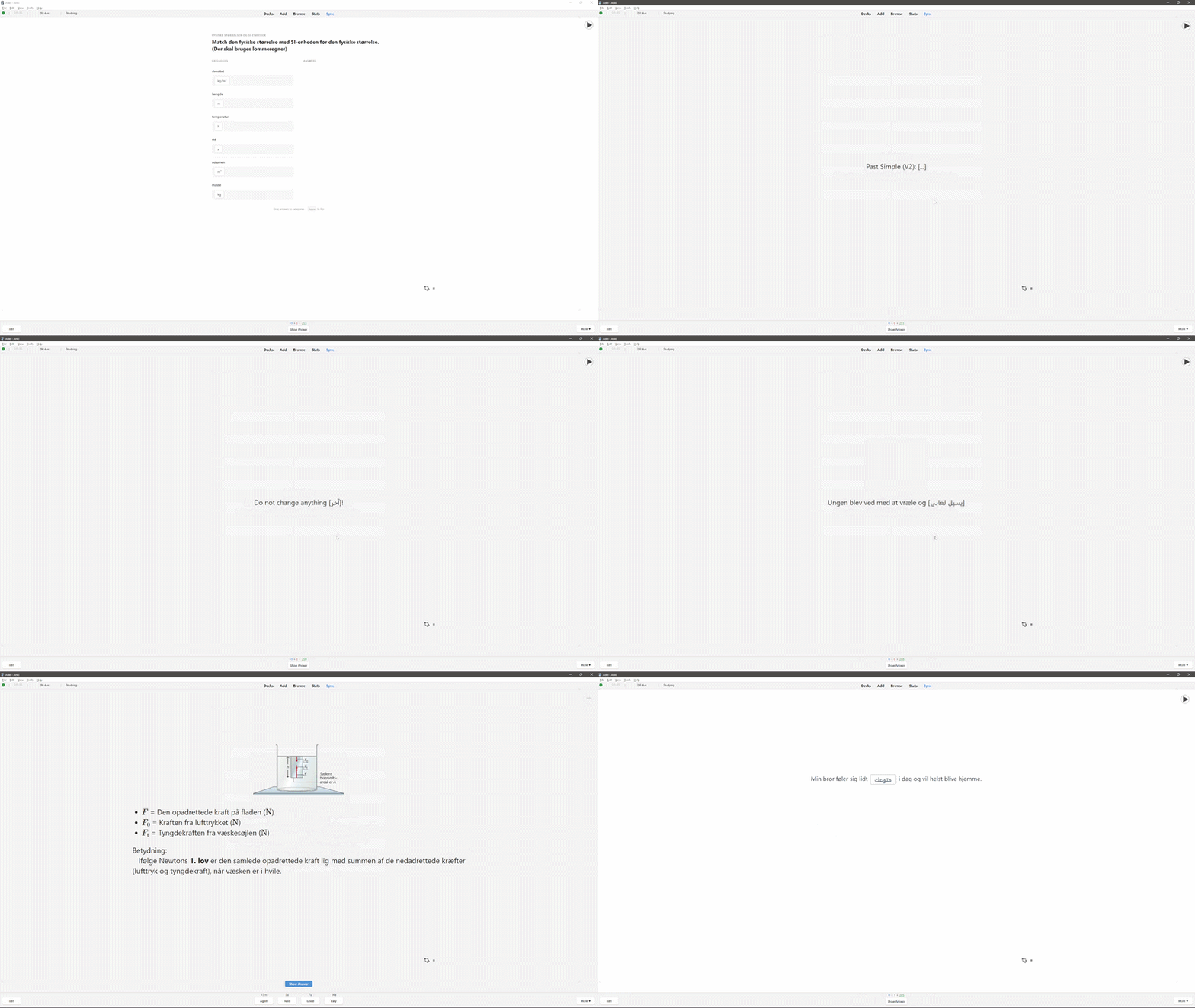
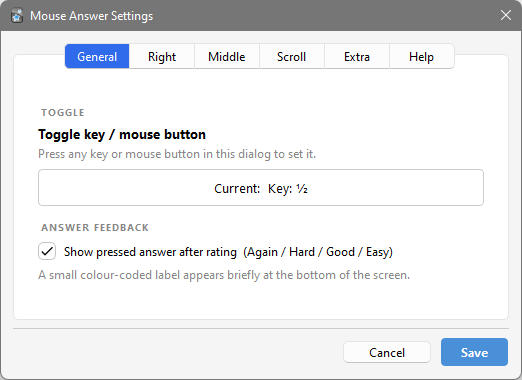
Configure mouse actions and change settings for your review workflow.
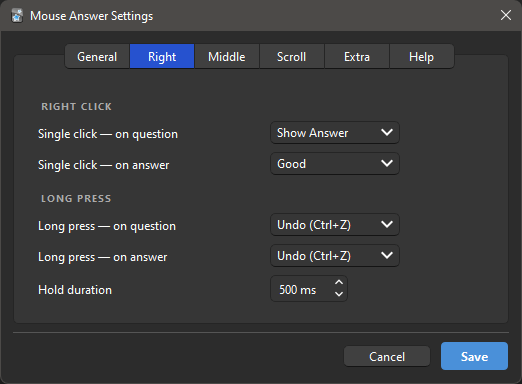
Choose actions for the question and answer sides, including answer reveal, review ratings, and no action.
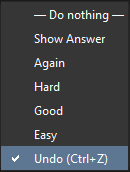
Configure secondary actions, such as Undo (Ctrl+Z), using a long press.
- Install the add-on from AnkiWeb.
- Open Tools → Mouse Shortcuts in Anki Desktop.
- Assign actions to your preferred mouse inputs.
- Configure separate actions for the question and answer sides.
- Optionally configure long-press actions and the feedback indicator.
- Start reviewing and use your mouse to trigger the configured actions.
Settings are saved and applied immediately, so you can adjust your setup without restarting Anki.
For example, you could configure your mouse like this:
| Mouse input | Question side | Answer side |
|---|---|---|
| Right click | Show Answer | Good |
| Scroll up | Do Nothing | Easy |
| Scroll down | Do Nothing | Again |
| Middle click | Show Answer | Undo (Ctrl+Z) via long press |
This is only an example. You can choose the actions that suit your own workflow.
Download the add-on:
Mouse Buttons as Review Shortcuts — AnkiWeb
After installation, restart Anki if required and open Tools → Mouse Shortcuts to configure it.
- Download or clone this repository.
- Place the add-on folder in Anki's
addons21directory. - Restart Anki.
Default add-on directories:
Windows
%APPDATA%\Anki2\addons21\
macOS
~/Library/Application Support/Anki2/addons21/
Linux
~/.local/share/Anki2/addons21/
For most users, installing through AnkiWeb is the simplest option.
These add-ons can complement a customized Anki review workflow:
- FocusFlow — Pomodoro timer, study sessions, and progress tracking.
- Minimalistic Drawing Panel — draw, write, and annotate directly during review.
- Focus Mode Suite — reduce interface distractions during Anki reviews.
Found a bug, encountered a compatibility issue, or have an idea for improving the add-on?
When reporting a problem, include your Anki version, operating system, mouse model (if relevant), and the steps needed to reproduce the issue.
Mouse Buttons as Review Shortcuts began as a tool for my own daily study sessions. Its features have grown from practical use and feedback, with the goal of making Anki reviews more comfortable and flexible.
Contributions, suggestions, and reports of reproducible issues are welcome.