







DRAW 2 (which stands for Detect and Recognize A Wide range of cards version 2) is an object detector trained to detect Yu-Gi-Oh! cards in all types of images, and in particular in dueling images.
This project is the plugin part of the DRAW 2 system. It allows users to seamlessly integrate the detector directly into their live streams or recorded videos; and those without any particular technical skills. The plugin can display detected cards in real time for an enhanced viewing experience. The python backend project is available here.
This project is licensed under the GNU Affero General Public License v3.0; all contributions are welcome.
🃏 Latest card pool:
CORI--- last updated13-06-2026
🔧 Latest app version:0.2.1-beta--- last updated01-06-2026
| Date | Type | Description |
|---|---|---|
| 13-06-2026 | 🃏 Card Pool | Card pool updated --- now supports cards up to Chaos Origins |
| 01-06-2026 | 🔧 App Update | Released version 0.2.1-beta --- see release notes |
| 18-05-2026 | 🃏 Card Pool | Card pool updated --- now supports cards up to Blazing Dominion |
| 06-04-2026 | 🃏 Card Pool | Card pool updated --- now supports cards up to Maze of Muertos |
| 06-04-2026 | 🔧 App Update | Released version 0.2.0-beta --- see release notes |
| 09-03-2025 | 🔧 App Update | Released version 0.1.5-alpha --- see release notes |
| 24-08-2025 | 🃏 Card Pool | Card pool updated --- now supports cards up to Justic Hunter |
Follow the installation instruction depending on your operating system so everything works smoothly:
🪟 Windows
-
Download the plugin installer from this link: DRAW2 Plugin Installer
-
Run the installer and follow the on-screen instructions.
-
Once the installation is complete, launch OBS Studio. If everything is set up correctly, you should see in the
Docksmenu a new option calledDraw 2. You can activate the dock and dock it wherever you want.
The installation is complete, you can enjoy detecting !
🐧 Linux
-
Download the plugin installer from this link: DRAW2 Plugin Installer
-
Either run the installer by double-clicking it, and click install OR by launching the command:
sudo apt install ./draw2-plugin-0.2.1-x86_64-linux-gnu.deb
-
Once the installation is complete, launch OBS Studio. If everything is set up correctly, you should see in the
Docksmenu a new option calledDraw 2. You can activate the dock and dock it wherever you want. The installation is not complete yet, the plugin is installed, but you still need to install python backend, close OBS and follow next steps. -
If you already have a python installation you want to use you can pass this step. Any python installation with
drawpackage installed can work. We will use a self-contained CPython. A relocatable build from python-build-standalone:# pick the install_only build for your arch (x86_64 for Intel and AMD cpu) curl -fL -o python.tar.gz https://github.com/astral-sh/python-build-standalone/releases/download/20261009/cpython-3.13.16+20261009-x86_64-unknown-linux-gnu-install_only.tar.gz mkdir -p ~/.draw2-runtime && tar -xzf python.tar.gz -C ~/.draw2-runtime
-
Install
drawbackend (make sure git is installed):~/.draw2-runtime/python/bin/python -m pip install "git+https://github.com/HichTala/draw2@obs-plugin"
-
In the Draw 2 settings, set Select Python installation to the prefix folder (the one that contains
bin/andlib/), e.g.~/.draw2-runtime/python. Expected layout:<prefix>/bin/python <prefix>/lib/python3.13/site-packages/draw
The installation is complete, you can enjoy detecting !
🍏 MacOS
-
Download the plugin installer from this link: DRAW2 Plugin Installer (macOS build hasn't been released yet, we're currently working on it, it will be released soon, you can still run the plugin by building it from source)
-
Run the installer by double-clicking it, there you should see a popup telling you that apple could not verify the plugin, there you can click done, then go your settings a search for
Privacy & Security, scroll down until you see"draw2-plugin....pkg" was blocked to protect your Mac, here clickOpen AnywayandOpen Anywayagain and follow the on-screen instructions. -
Once the installation is complete, launch OBS Studio. If everything is set up correctly, you should see in the
Docksmenu a new option calledDraw 2. You can activate the dock and dock it wherever you want. The installation is not complete yet, the plugin is installed, but you still need to install python backend, close OBS and follow next steps. -
If you already have a python installation you want to use you can pass this step. Any python installation with
drawpackage installed can work. We will use a self-contained CPython. A relocatable build from python-build-standalone:# pick the install_only build for your arch (aarch64 for Apple Silicon) curl -fL -o python.tar.gz https://github.com/astral-sh/python-build-standalone/releases/download/20261009/cpython-3.13.16+20261009-aarch64-apple-darwin-install_only.tar.gz mkdir -p ~/.draw2-runtime && tar -xzf python.tar.gz -C ~/.draw2-runtime
-
Install
drawbackend (make sure git is installed):~/.draw2-runtime/python/bin/python -m pip install "git+https://github.com/HichTala/draw2@obs-plugin"
-
In the Draw 2 settings, set Select Python installation to the prefix folder (the one that contains
bin/andlib/), e.g.~/.draw2-runtime/python. Expected layout:<prefix>/bin/python <prefix>/lib/python3.13/site-packages/draw
The installation is complete, you can enjoy detecting !
When the plugin is installed and the model weights are downloaded, you can launch OBS Studio.
- Open the
Docksmenu and selectDraw 2to activate the plugin dock. - In the Draw 2 dock, you can configure the plugin settings by clicking on the gear icon next to
Start DRAWbutton:- Select Python installation: Path to the Python prefix that has the
drawbackend installed (the folder containingbin/andlib/). Must be a full Python install, not a virtualenv. - Select Deck List: Choose the deck list file that contains the cards you want to detect. 3 deck lists
can be handled at the same time. To add new deck lists, you can click the
Open Folderbutton and drag and drop your deck list files (in ydk format) into the opened folder. - Minimum Out of Screen Time: The minimum time a card just detected can be displayed again.
- Minimum Screen Time: The minimum time a card is displayed.
- Confidence Threshold: Set the minimum confidence level for card detection. Detections below this threshold will be ignored.
- Select Python installation: Path to the Python prefix that has the
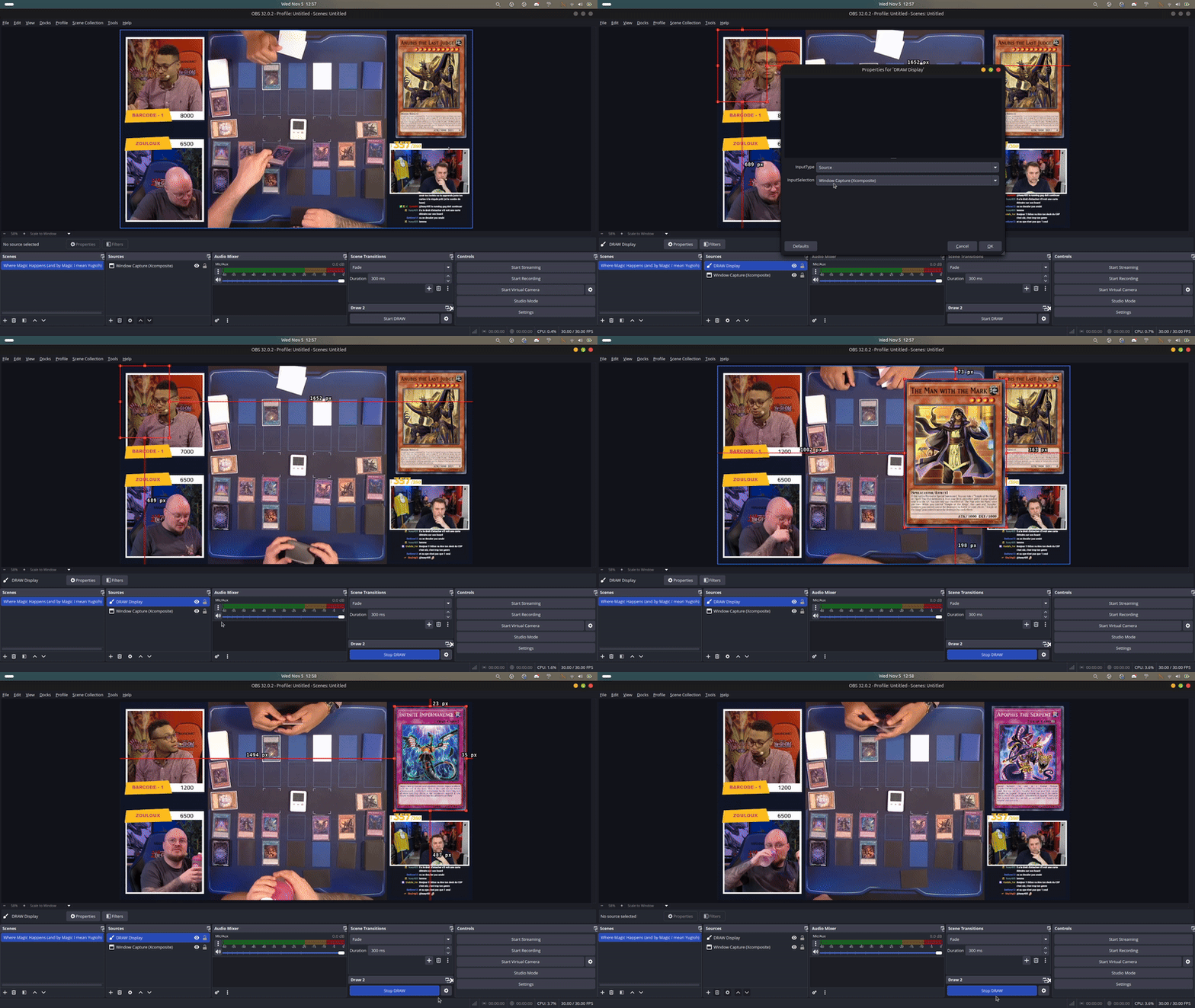
- The plugin provide a new source called
Draw Display. You can add it to your scene like any other source. This source will display the detected cards on the screen. You can choose what source/scene to detect cards from. - Click the
Start DRAWbutton to start the detection process. The plugin will start detecting cards in real time and display them on the screen using theDraw Displaysource. The plugin start detecting from the moment you see theStop DRAWbutton. If you don't see it something went wrong. - In the other case you can enjoy the plugin!
Here is a small overview :)
🪟 Windows
Coming soon 👀
🐧 Linux
-
Install the build prerequisites with Homebrew:
sudo apt update
sudo apt install -y cmake
-
Clone the source:
git clone https://github.com/HichTala/draw2-plugin cd draw2-plugin -
Configure and build:
cmake --preset linux
cmake --build build_linux --config RelWithDebInfo
-
The built plugin bundle is produced at:
build_linux/RelWithDebInfo/ -
Install it by copying the bundle into your OBS plugins folder, then restart OBS:
# adapt the path depending on your obs installation
sudo cp -r release/RelWithDebInfo/* /usr/
Once OBS restarts, the plugin appears as
Draw 2in theDocksmenu.
The plugin runs the draw backend as a separate Python process, it does not
embed an interpreter. You provide a Python installation that has the draw
package, and the plugin launches <prefix>/bin/python and communicates with it
over shared memory.
The Python you point to just needs
bin/pythonand thedrawpackage importable. Any reasonably recent Python 3 works, it does not have to match the plugin's build. A self-contained CPython is the easiest to set up if you don't have a python installation already
-
You can refer to this repo to get a self-contained CPython python-build-standalone
-
To install the
drawbackend use theobs-pluginbranch, that is the one that exposes the entry point the plugin launches (the defaultmainbranch is the standalone CLI):~/.draw2-runtime/python/bin/python -m pip install "git+https://github.com/HichTala/draw2@obs-plugin"
-
In the Draw 2 settings, set Select Python installation to the prefix folder (the one that contains
bin/andlib/), e.g.~/.draw2-runtime/python. Expected layout:<prefix>/bin/python <prefix>/lib/python3.13/site-packages/draw
🍏 MacOS
-
Install the build prerequisites with Homebrew:
brew install cmake ccache coreutils jq xcbeautify
You also need a recent Xcode (with its command line tools).
-
Clone the source:
git clone https://github.com/HichTala/draw2-plugin cd draw2-plugin -
Configure and build:
cmake --preset macos
cmake --build build_macos --config RelWithDebInfo
-
The built plugin bundle is produced at:
build_macos/RelWithDebInfo/draw2-plugin.plugin -
Install it by copying the bundle into your OBS plugins folder, then restart OBS:
mkdir -p "$HOME/Library/Application Support/obs-studio/plugins"
cp -R build_macos/RelWithDebInfo/draw2-plugin.plugin \
  "$HOME/Library/Application Support/obs-studio/plugins/"
Once OBS restarts, the plugin appears as
Draw 2in theDocksmenu.
The plugin runs the draw backend as a separate Python process, it does not
embed an interpreter. You provide a Python installation that has the draw
package, and the plugin launches <prefix>/bin/python and communicates with it
over shared memory.
The Python you point to just needs
bin/pythonand thedrawpackage importable. Any reasonably recent Python 3 works, it does not have to match the plugin's build. A self-contained CPython is the easiest to set up if you don't have a python installation already
-
You can refer to this repo to get a self-contained CPython python-build-standalone
-
To install the
drawbackend use theobs-pluginbranch, that is the one that exposes the entry point the plugin launches (the defaultmainbranch is the standalone CLI):~/.draw2-runtime/python/bin/python -m pip install "git+https://github.com/HichTala/draw2@obs-plugin"
-
In the Draw 2 settings, set Select Python installation to the prefix folder (the one that contains
bin/andlib/), e.g.~/.draw2-runtime/python. Expected layout:<prefix>/bin/python <prefix>/lib/python3.13/site-packages/draw
A medium blog post explaining the main process from data collection to final prediction has been written. You can access it at this address. If you have any questions, don't hesitate to open an issue.
You can reach me on Twitter @hichtala or by email at hich.tala.phd@gmail.com.