

Record free-to-air TV.
Watch it on your TV in any media player, ad free.*
A self-hosted TV recorder and player for any TVHeadend-compatible tuner (e.g. HDHomeRun).
*optional via Comskip


Important
Leaving Fetch TV? See the step-by-step guide to save your recordings and own your setup before Fetch's Gen 3 Extended Service Levy.
- Overview
- Demo
- Screenshots
- Prerequisites
- Quick start
- Features
- Regions
- Plex DVR
- Without Freetvarr
- Out of scope
- Background
- Configuration
- Security
- Technical deep dive
- Troubleshooting
- Disclaimer
- Contributing
- Support
- Licence
Freetvarr records free-to-air TV and files each episode into your media library. Watch the recordings on your TV in your media player (e.g. Plex, Jellyfin, Kodi, etc.), with pause, rewind, and skip.
Freetvarr records through TVHeadend, the free recording software that runs inside Freetvarr's install. TVHeadend drives your tuner and records. Freetvarr sets it up and controls it for you.
TVHeadend names each recording after the programme title only, such as The Block.ts. A media player matches a file to an episode only when the name has a season and episode number or an air date. Freetvarr finds each finished recording and files it as Show/Season 01/Show - S01E02.ts, or by air date when the TV guide has no episode number. A one-off, such as a sports final, goes to a separate folder. If you use Plex, Freetvarr tells Plex to scan for the new episode.
Freetvarr is also a TV app for your home network. Schedule recordings from a 7-day TV guide on a TV, tablet, or phone. Watch live TV or your recordings in the browser, and pause and rewind live TV for 30 minutes by default (set LIVE_TV_BUFFER_MINUTES for more).
Freetvarr runs in Docker on a computer that stays on, such as a NAS (a small storage box with hard drives) or a mini PC. The install runs TVHeadend for you in its own Docker container. Any TVHeadend-compatible tuner works. The types are a network tuner, a USB DVB stick (a USB digital TV receiver), a PCIe card, SAT>IP (a satellite tuner that sends its signal over your network), and IPTV (TV streamed over the internet).
A walkthrough of the app: Home, Live TV, the TV guide, and Recordings.
walkthrough-demo.mp4
The one-line install, from the curl command to the address of the setup wizard.
install-demo.mp4
The setup wizard, from the time zone to the ready step.
setup-wizard-demo.mp4
Home
TV guide
Recordings
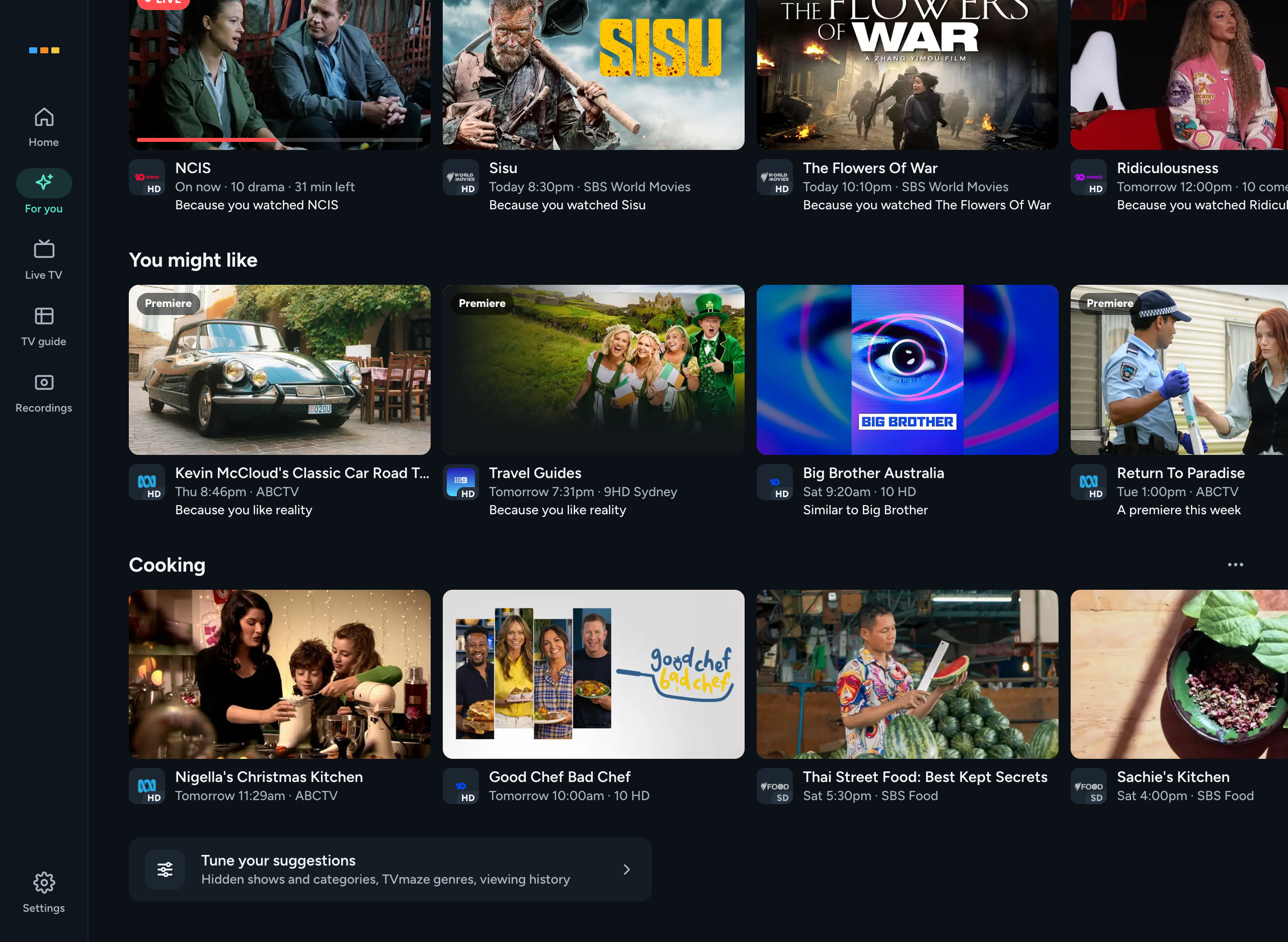
For you
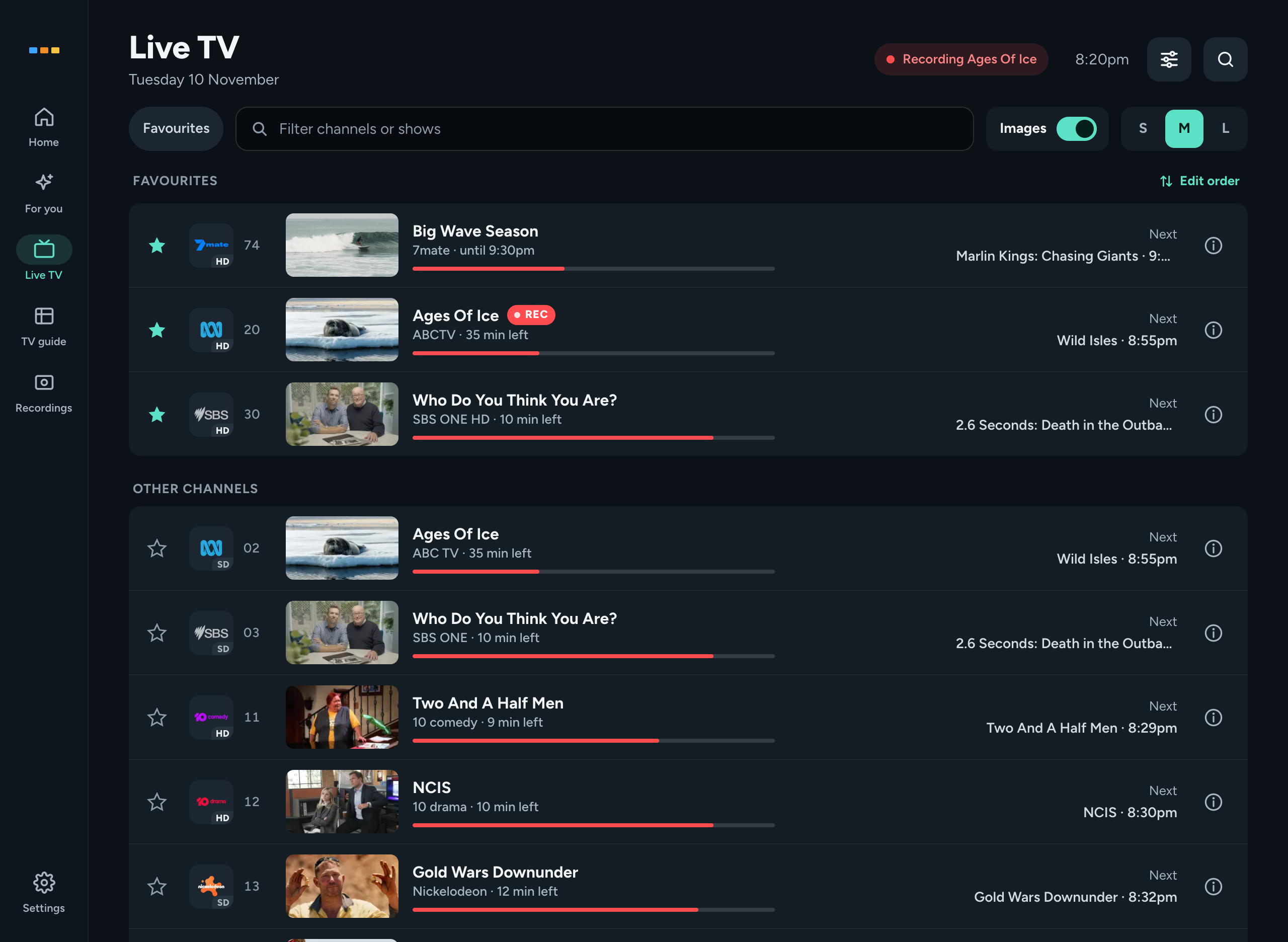
Live TV
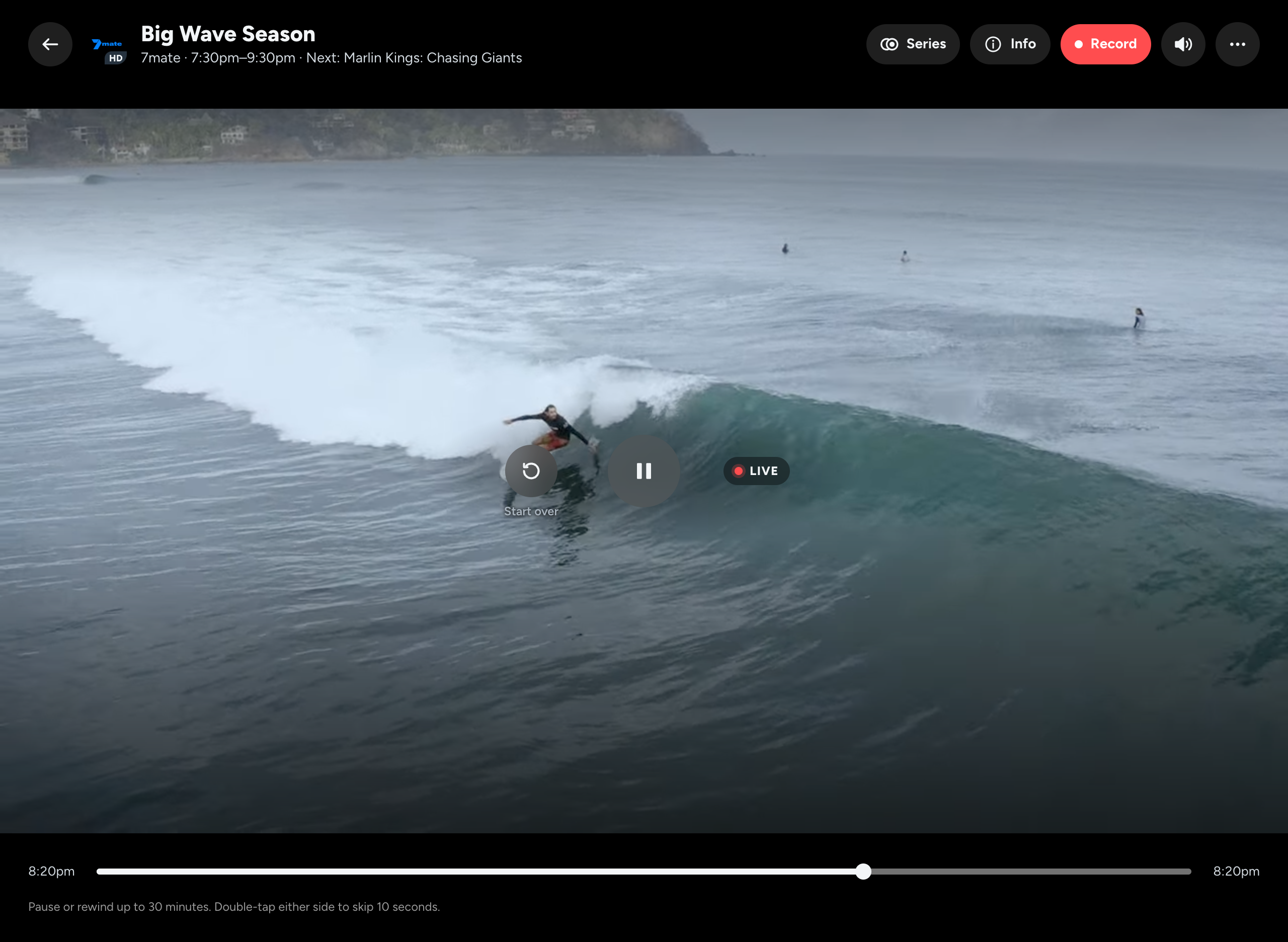
Live TV player
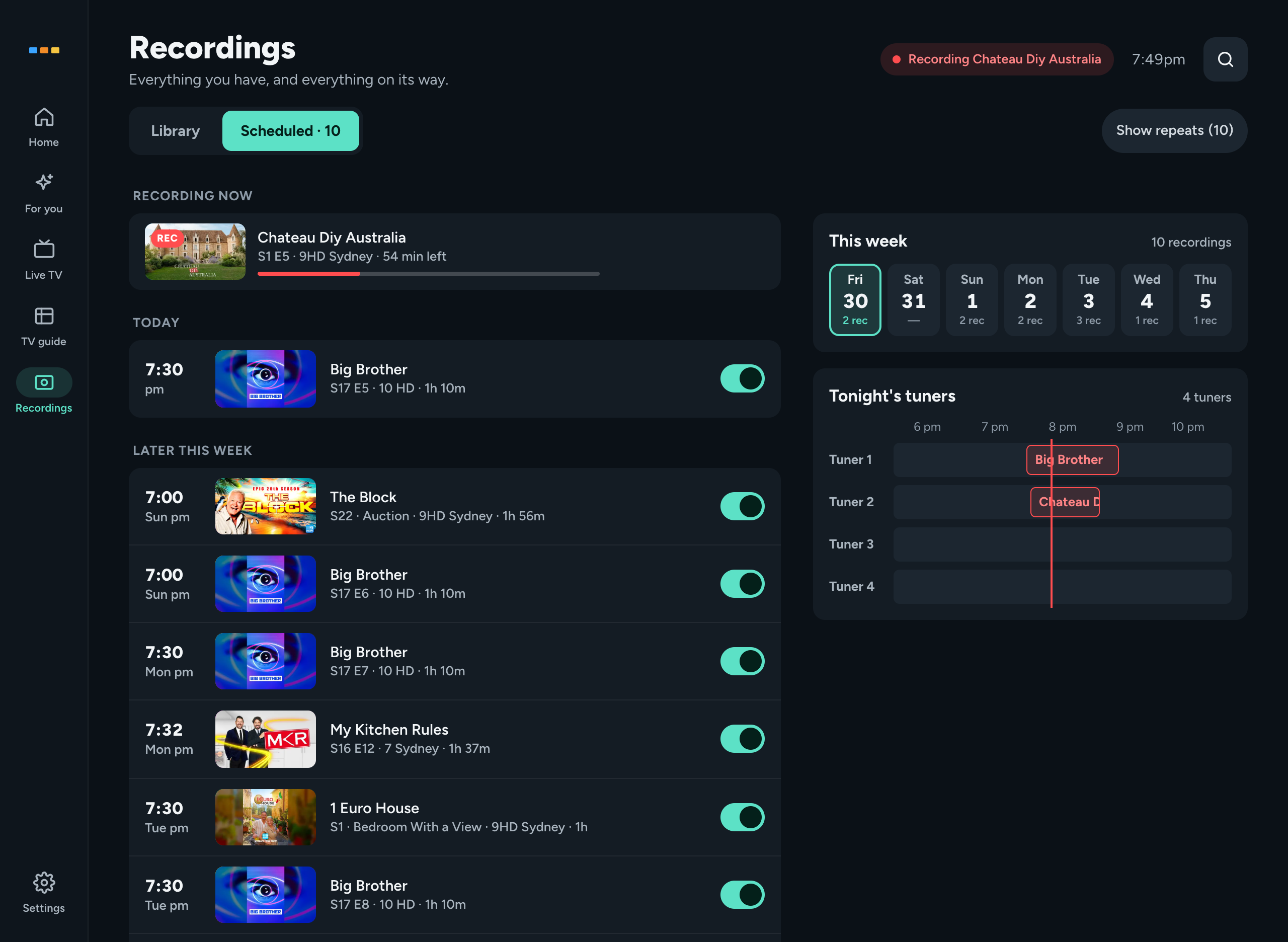
Scheduled recordings
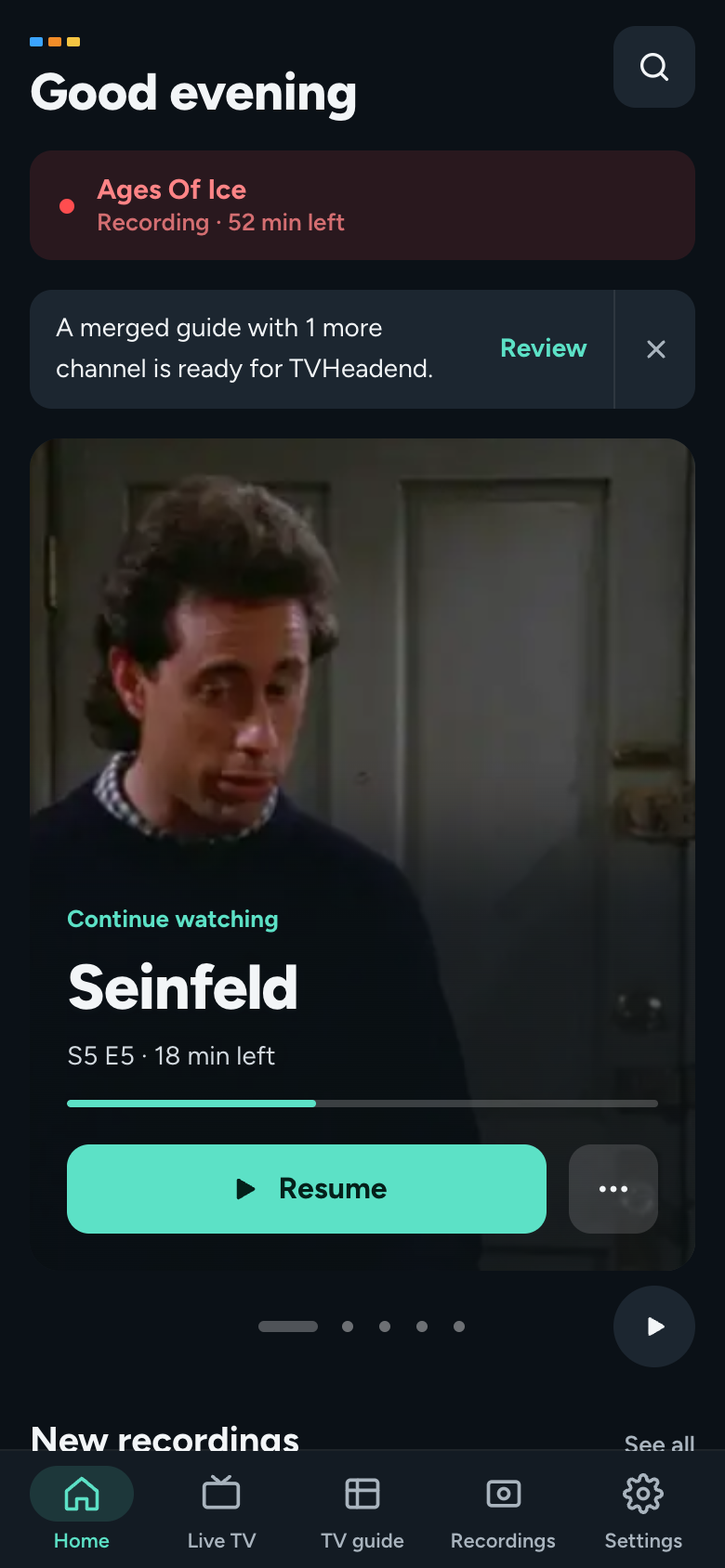
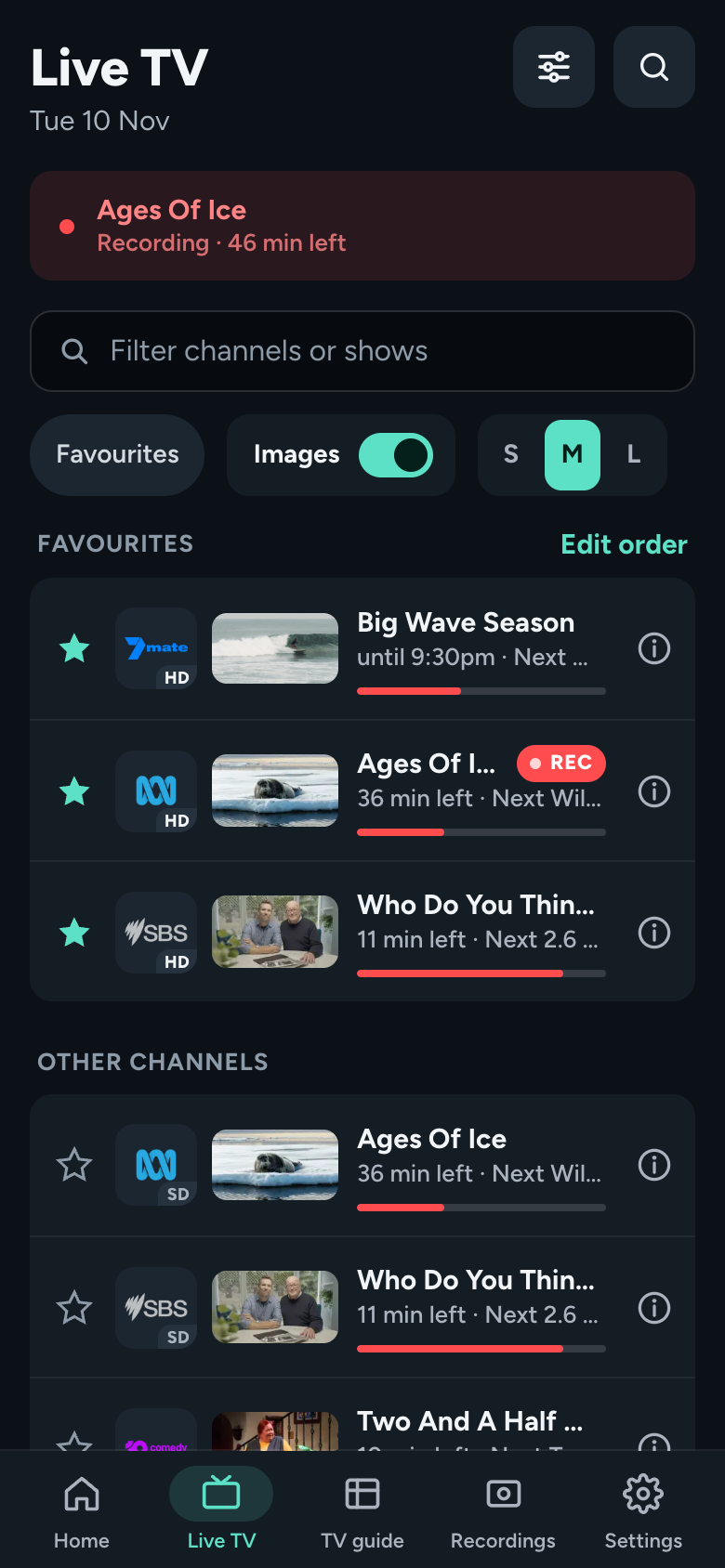
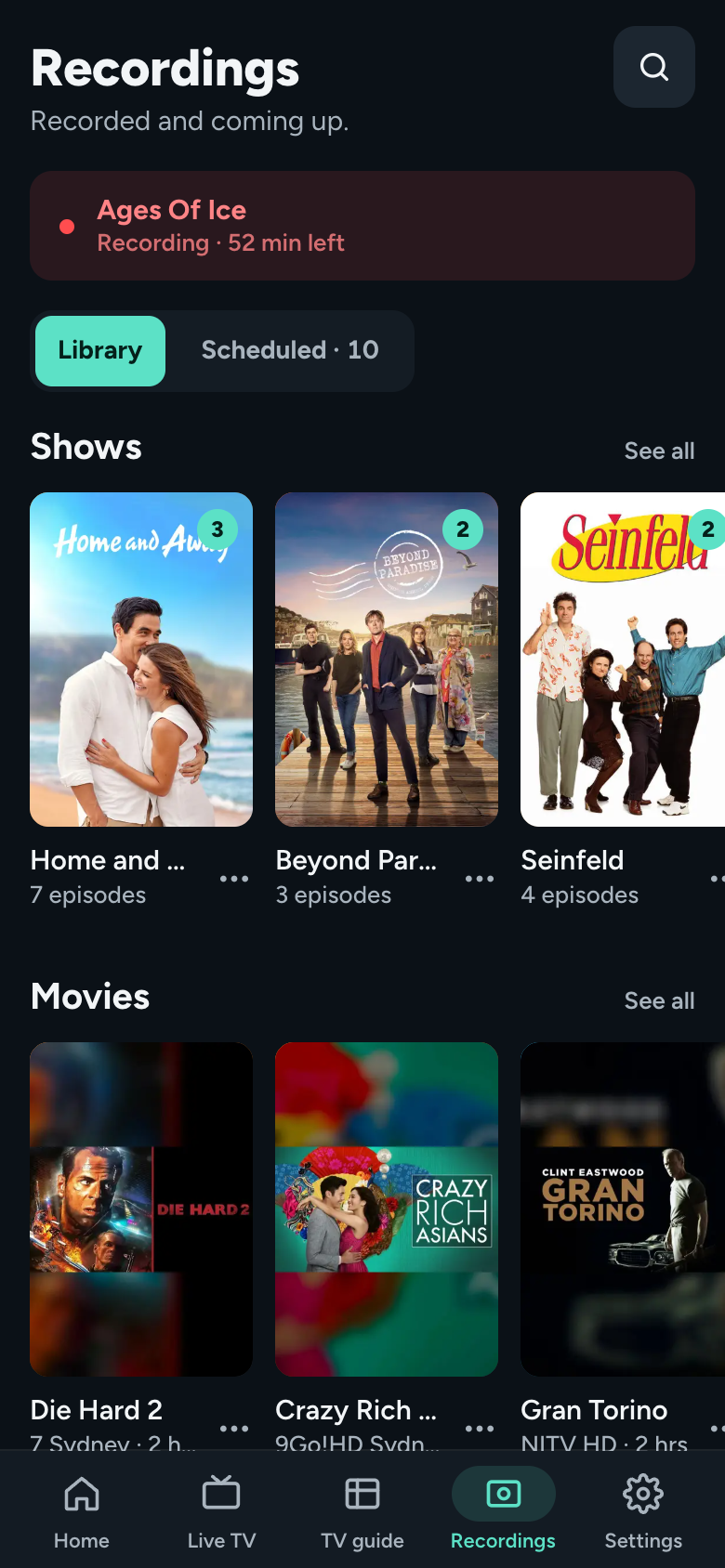
Mobile
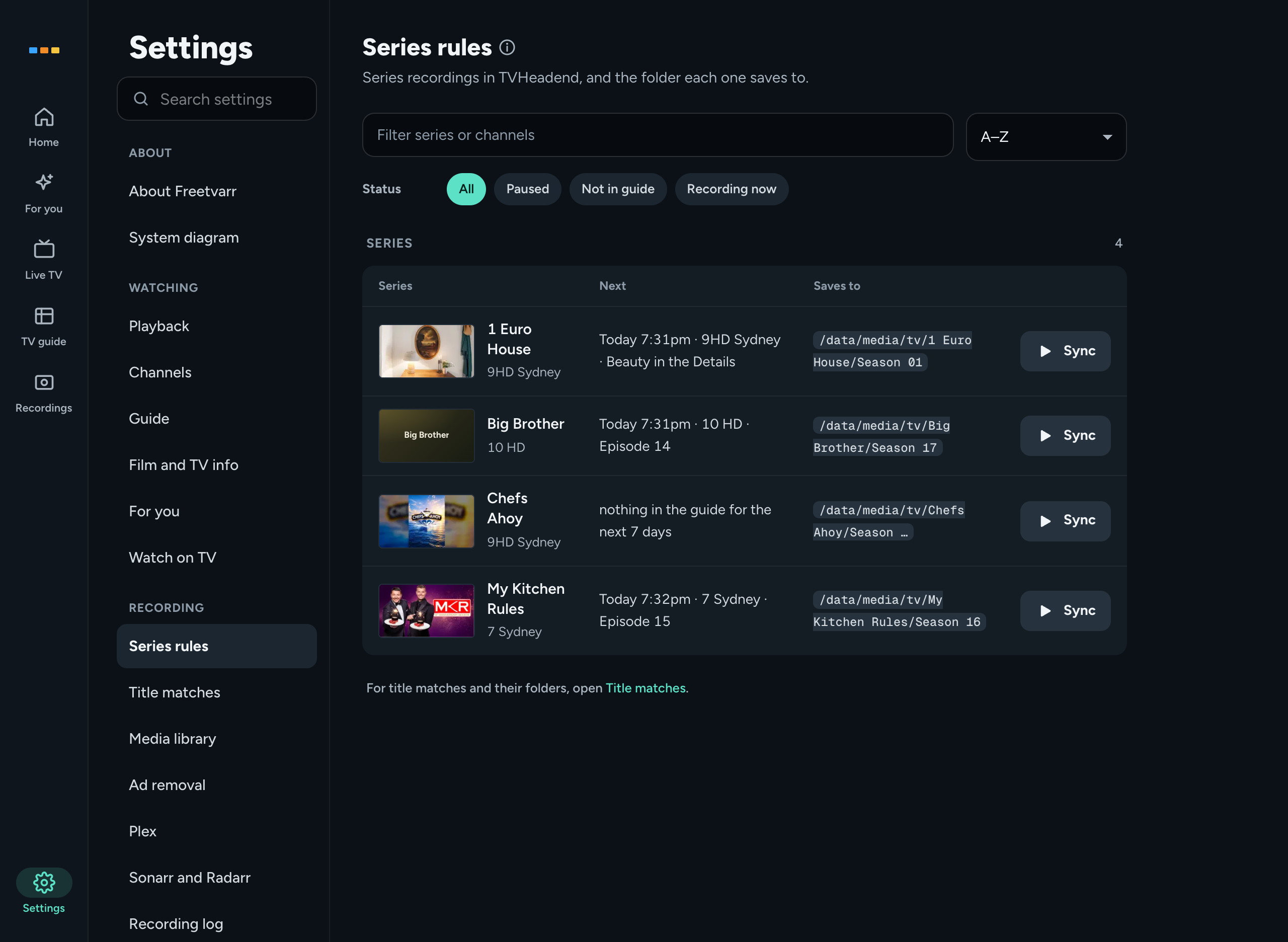
Series rules (Settings → RECORDING)
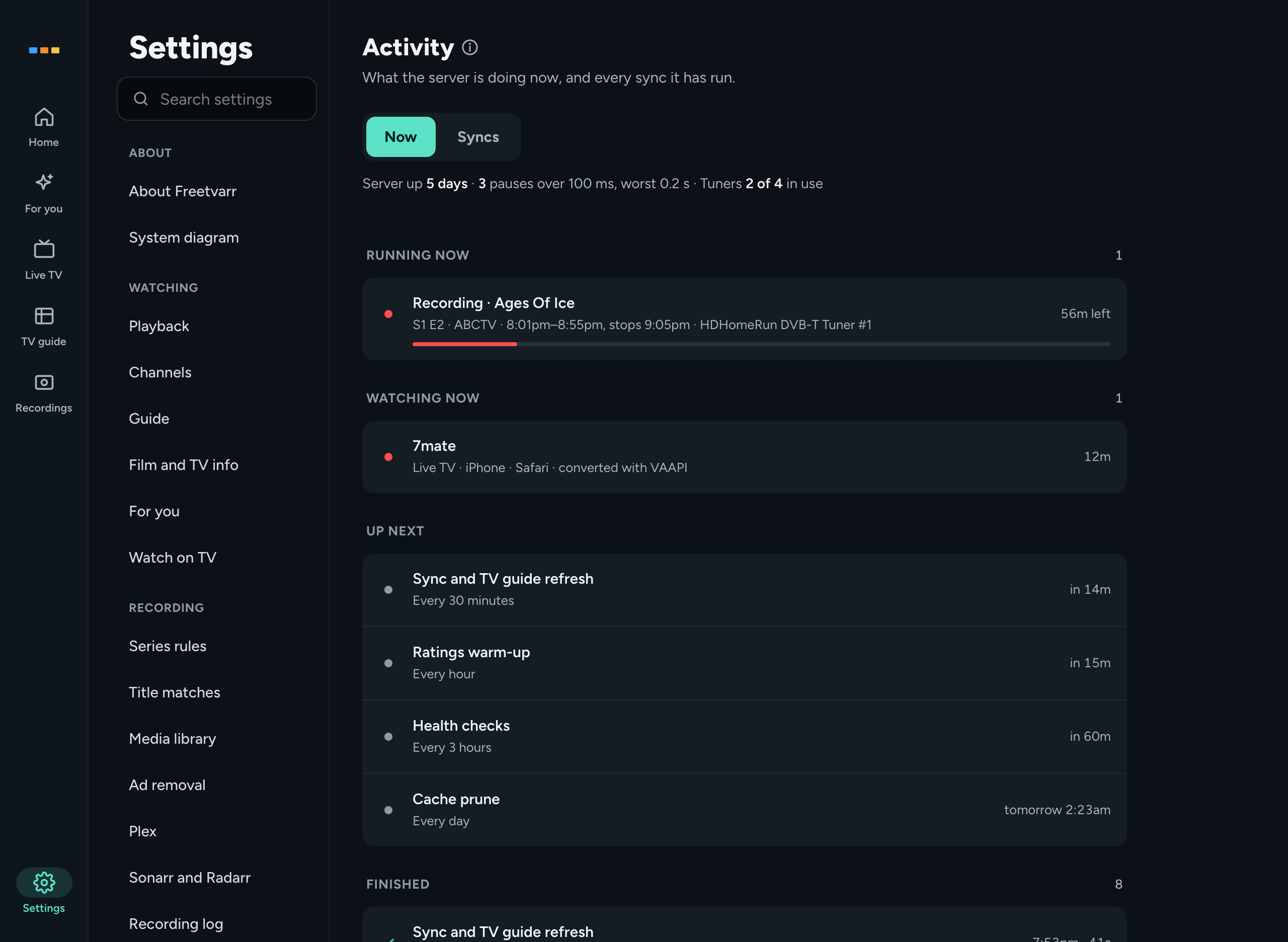
Activity (Settings → SYSTEM)
- A TVHeadend-compatible tuner. The Hardware requirements page covers the choice. A USB tuner needs DVB drivers on the host, and most NAS operating systems do not have them.
- Docker with Compose v2 on a host that stays on. For a network tuner such as an HDHomeRun, run Docker on Linux (a NAS or mini PC). Docker Desktop and OrbStack on a Mac cannot find a network tuner on their own; enter the tuner's IP address in the Channels step of setup instead. Freetvarr is untested on Windows, and the install script does not run there.
- Plex Media Server is optional. Sonarr and Radarr are optional too.
In a terminal, run this command in the folder where you want a freetvarr folder to appear:
curl -fsSL https://raw.githubusercontent.com/furey/freetvarr/main/install.sh | shThe script creates the freetvarr folder, downloads its Docker Compose file, and writes its .env. It asks you to confirm who owns the project files; press Enter to accept the defaults. It then starts the TVHeadend and Freetvarr Docker containers and outputs the URL of the setup wizard.
On a NAS or another remote host, sign in over SSH first. To install by hand or with a NAS container app, see Getting started. To have the script install Plex too, get a Plex claim code first (No Plex yet?).
Open the URL of the setup wizard in a browser and work through the steps: time zone, TVHeadend, channels, guide, folders, and Plex. Setup fills in what it can find, and you check each value before it saves.
In Freetvarr, open the TV guide, press a programme, and press Record for one airing. Pick Every episode and press Record series for every episode. To change TVHeadend settings yourself, see TVHeadend by hand.
On an iPhone or iPad, open Freetvarr in Safari, tap the Share button, then tap Add to Home Screen. Freetvarr then opens full screen from its own icon. On Android, use Chrome's ⋮ menu → Add to Home screen. See Save it as an app.
In a terminal in the freetvarr folder, download the new Docker images, then restart the Docker containers:
docker compose pull
docker compose up -d
To back up first, go back to an older version, or see what changes in each release, read Updating Freetvarr.
- Series recording: a series becomes one automatic recording rule that matches the title and the channel. TVHeadend's duplicate detection skips repeats, and the default padding is
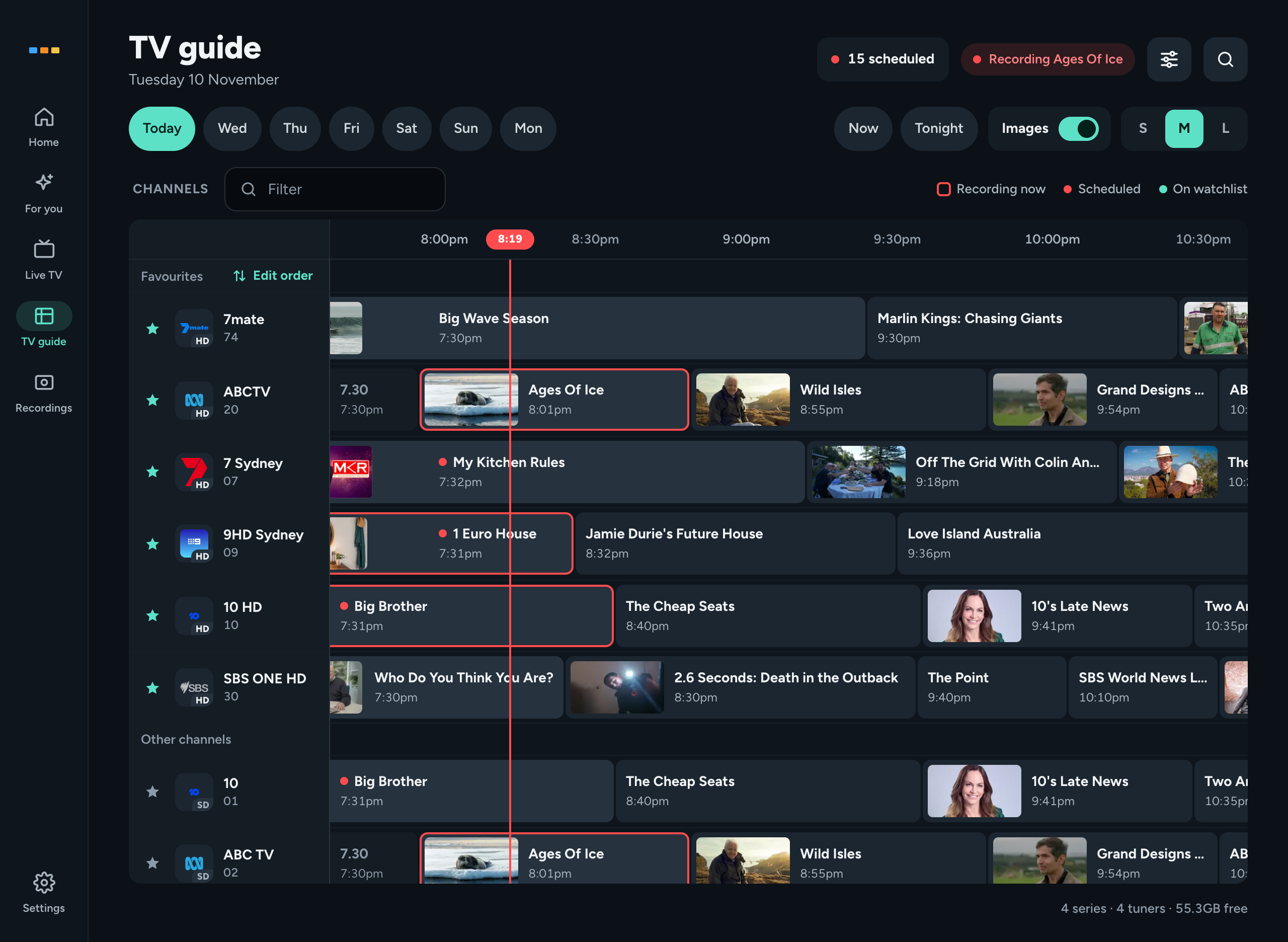
2minutes before and10after, because free-to-air broadcasts run late. Turn on Any channel to record a show on whichever channel airs it. Recording on an SD channel offers the HD simulcast instead. - TV guide: a 7-day programme guide. Schedule and cancel recordings, record a series, search the week, and put your favourite channels first. The TV guide keeps the programmes that already aired today, and each day runs on to 3am. A +1 channel gets the listings of its main channel one hour later.
- Watchlist: Add to watchlist in search lists a show under WATCHLIST whenever it is in the TV guide. Record when it appears starts an any-channel series recording the first time the show is in the TV guide.
- Recording options: each show's page has the channels, how many episodes to keep, the start and finish padding, ad removal, and pause. Settings → RECORDING → Series rules lists every rule with where its episodes save.
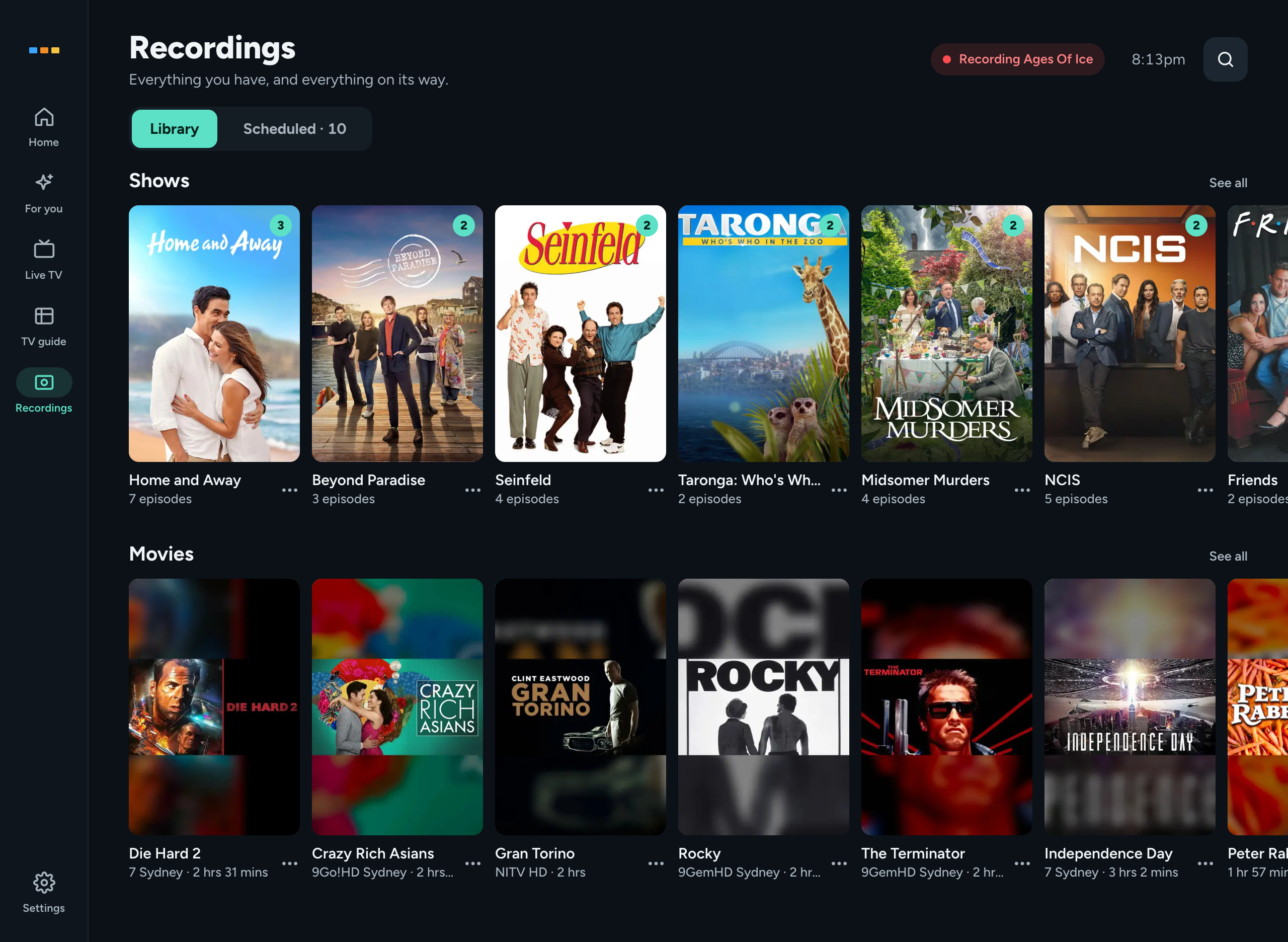
- Scheduled: Recordings → Scheduled lists what records now, today, tomorrow, and later this week. On a wide screen, a timeline shows what each tuner records and warns when two recordings need more tuners than you have.
- Optional ad removal: Comskip finds the ad breaks. Detect mode writes a
.edlfile that Kodi and Freetvarr's player skip. Cut mode copies the video across untouched (no re-encode) and keeps a.origbackup. Off by default; see Ad removal.
- Series folders: each series gets a folder under your media root, matched by name to an existing folder (even when the names are not identical), with a season template.
- Library-ready filenames:
Show - S01E02 - Title.ts, orShow - YYYY-MM-DD - Title.tswhen the TV guide gave no episode number. - Shows, one-offs, and films: a programme counts as a series when it has a series recording, you recorded it on two or more days, or the TV guide numbers its episodes or seasons. A one-off goes to its own folder for a separate library. A film goes to the movies folder as
Title (Year)when you set one. Move to Shows and Move to One-offs correct a wrong guess and move the files. - Hardlink imports: when Freetvarr sees the recordings folder and the media library through one mount, the import is a hardlink. A hardlink is instant and uses no extra disk space. Across mounts, the import is a copy.
- Short-file detection: an import more than
1MBshort of what TVHeadend reported stayspartial, and the next sync (Freetvarr's regular check for new recordings) imports it again. - Remove after import: once Plex confirms its copy, Freetvarr can delete the recording's file from TVHeadend.
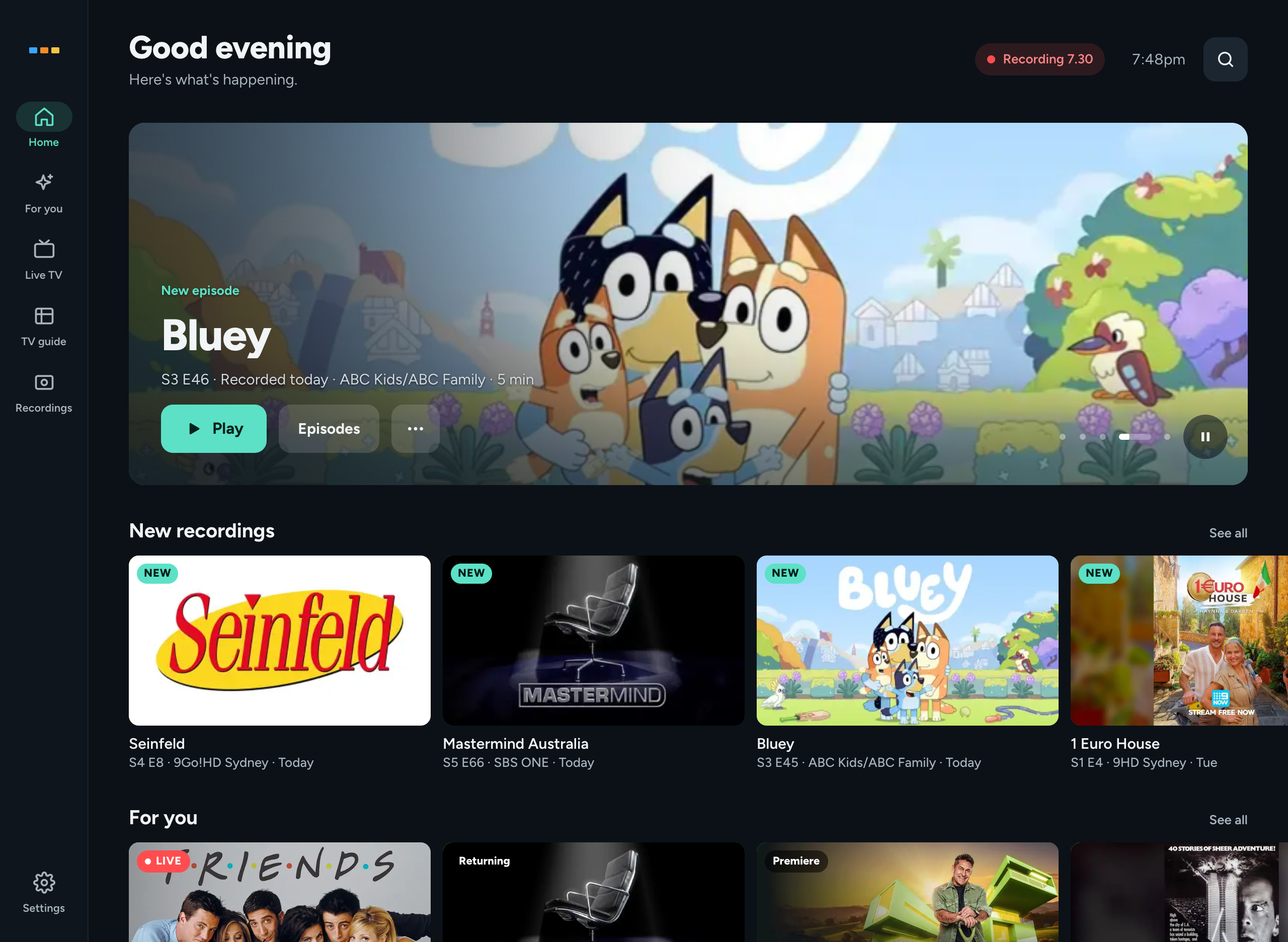
- Five destinations: Home, Live TV, TV guide, Recordings, and Settings, on a tab bar on a phone and a rail on a wider screen.
- Home: highlights such as the episode to carry on with, a new episode, and what records now; then rows for For you, new recordings, what is on now, and what records tonight.
- For you: suggestions from the next week of the TV guide, worked out on your own computer from what you record and watch (For you).
- Live TV in the browser: watch any channel on a TV, tablet, or phone. Freetvarr checks for a free tuner first and warns when a recording will need it within the hour. It converts channels a browser cannot play, in hardware through VAAPI (the Linux interface to the graphics chip's video encoder) when the host has it.
- Player: pause and rewind live TV for
30minutes by default (setLIVE_TV_BUFFER_MINUTESfor more), Start over a programme, and Go live to return to now. Recordings resume where you stopped, and Skip ad jumps past a detected ad break. Captions shows the Teletext subtitles of the broadcast. A Miniplayer keeps playing while you browse, and Multiview shows up to four live channels at once. - Watch on your TV: Settings → WATCHING → Watch on TV makes a TVHeadend login for TV apps and shows each address to copy, so a TV app (e.g. Jellyfin, Kodi, etc.) plays live TV on the TV itself (TV apps).
- Search: each page header has Search, which finds a show by its title, a nickname, its initials, or a close spelling.
- Plex refresh: Freetvarr refreshes the Plex library section after every sync that imported something. With no Plex yet, the Docker Compose file can run one (
COMPOSE_PROFILES=plex), and setup creates its TV, one-off, and movie libraries. - Watched sync: watched, unwatched, and resume points move both ways between Plex and Freetvarr. The check runs after each sync, a few seconds after you watch or mark something, and once a day over every Plex item (Watched state).
- Your whole library: when Plex is connected, Recordings also lists the Plex episodes and films that Freetvarr did not record, such as Sonarr and Radarr downloads (Your whole library).
- Delete: a delete removes the episode from your library and its recording from TVHeadend, then refreshes Plex. A dialog lists what it deletes, with the size, before anything changes.
- Sonarr and Radarr: with a connection, a delete of a downloaded file goes through Sonarr or Radarr, after Freetvarr stops monitoring it. Without a connection, Freetvarr leaves their files alone. An episode with two versions offers Both, Recording, or the downloaded copy.
- Setup wizard: scans for channels and sets up the TV guide, folders, and Plex. If Freetvarr installed TVHeadend for you, setup also creates the admin and Freetvarr logins and closes TVHeadend's open access. Settings → SYSTEM → Setup shows what it saved.
- Activity: Settings → SYSTEM → Activity has a Now tab with running jobs, recordings in progress, watching sessions, and what runs next. The Syncs tab holds the sync history. Press a job to see its steps and log.
- Health: Settings → SYSTEM → Health checks TVHeadend, the TV guide, the folders, Plex, and live TV, with the fix and a docs link for each problem. A dot on the Settings icon shows when a check fails.
- Scheduled and manual sync: Freetvarr checks for finished recordings every
15minutes,30minutes (the default), hour, or on your own cron expression. It also syncs about a minute after a recording finishes. Sync now runs a sync at once. - Phone-friendly UI: every page works on a phone. Add Freetvarr to the Home Screen to open it full screen from its own icon.
- Reset: Reset Freetvarr under Settings → DANGER ZONE deletes Freetvarr's settings, series, list of recordings, and sync history, then returns to setup. Your video files and TVHeadend stay as they are.
- Docker containers: Freetvarr (SQLite-backed) and TVHeadend each run in their own Docker container. A short-lived
initcontainer creates the folders first, then exits. Plex is an optional third container. No login, and no external runtime dependencies once configured.
Freetvarr works everywhere TVHeadend works. It talks only to TVHeadend's HTTP API and the recordings folder, so TVHeadend handles the broadcast standard: DVB-T/T2 (Australia, New Zealand, UK, Europe), DVB-C and DVB-S, ATSC (US and Canada), and ISDB-T.
These differ by country, and all of them are TVHeadend settings:
- the tuner model (a DVB-T tuner in Australia or the UK, an ATSC one in the US);
- the TV guide source (a free XMLTV feed in Australia and New Zealand, over-the-air Freeview EIT (guide data in the broadcast) in the UK, Schedules Direct in the US);
- the mux scan list (a mux is one broadcast frequency).
Note
The docs use Australian values in their examples, because that is where the author lives. Swap the time zone, the mux list, the TV guide source, and the tuner model for your own region's. The bundled comskip.ini and the HD/SD channel aliases are tuned for Australian channels but do no harm elsewhere.
If you already have a Plex Pass, Plex's own Live TV & DVR may be all you need, and that is a fine choice. It records from a network tuner straight into your Plex library, with series recording, padding, ad skipping, and live TV in every Plex app. In Australia it needs an XMLTV guide feed, such as i.mjh.nz, because Plex has no built-in Australian guide.
If you don't have a Plex Pass, compare its price (A$110 a year, or A$1,190 lifetime, in October 2026) with a free setup. Freetvarr and the TVHeadend it installs cost nothing, play live TV in any browser, and keep the Teletext captions Australian channels send. Plex DVR instead has the full comparison and a setup guide.
TVHeadend on its own covers most of the job. Its web interface has a TV guide, one-off and series recording with padding and duplicate detection, and a filename template that can write library-ready paths ($t/Season $s/$t - S$sE$e.$x). Its DVR post-processor hook can run a script that calls Plex's refresh URL or comskip. If that is enough, use it and skip Freetvarr.
Freetvarr adds the parts TVHeadend leaves to you:
- a TV guide, Home page, and player that work on a phone;
- a page for each show, with watched marks that match Plex;
- series folders matched to the folders your library already has;
- the Plex refresh and delete-after-confirm loop;
- the comskip detect and cut pipeline, with a verified swap and
.origrollback; - live progress and a job history you can read.
- An indexer: Freetvarr does not search the internet for content. It works with the recordings TVHeadend makes, and with the Plex library you already have. Sonarr and Radarr connect only so that a delete goes through them.
- A tuner: TVHeadend drives the hardware, scans the muxes, and writes the files. Freetvarr talks to TVHeadend's HTTP API and never touches the tuner.
- Authentication: Freetvarr has no login, so anyone who can reach it can change its settings. Do not expose it to the internet (see Security).
- A converter: files arrive from TVHeadend as
.ts(the raw broadcast format) and stay.ts. Only the live TV player re-encodes, and only what it streams to the browser. Add Tdarr or similar afterwards if you need.mkv. - A notifier: there is no Discord, ntfy, or push integration. Add to watchlist adds a show to a list in the app; it sends no message.
Important
Tested against TVHeadend 4.3 fed by an HDHomeRun Flex Quatro, with Plex Media Server. Other tuners and TVHeadend versions are unverified.
The author first wrote Fetcharr, which copied Fetch TV recordings into Plex. When Fetch announced its Gen 3 Extended Service Levy, the author bought an HDHomeRun and replaced Fetcharr's Fetch parts with TVHeadend, one at a time, until it worked. That became Freetvarr. Only then did the author notice that a Plex Pass already includes Plex DVR.
Plex DVR, FlexPass, or another project might suit you better, and that is fine. The author has written software for 20 years and builds Freetvarr for fun, and it does what the author needs. It is shared in case it helps someone. Use it, clone it, or point your own AI agent at it and make it yours. Nothing is for sale.
If you ran Fetcharr, see From Fetcharr.
The TVHeadend URL and login, the Plex token, the Sonarr and Radarr connections, and the storage paths are runtime settings. Set them in Freetvarr's Settings in a browser, not in the .env. Every value in the .env is optional, and it carries only deploy-level settings:
| Variable | Purpose |
|---|---|
PUID/PGID |
UID and GID to run as (default 1000); use your own user (id -u and id -g). Both Docker containers use the same pair |
CONFIG_PATH |
Host folder for both Docker containers' config (default ./config); Freetvarr's database lives in ${CONFIG_PATH}/freetvarr |
DATA_PATH |
Host folder (default ./data) holding recordings/ (TVHeadend's output) and media/ (your media library) |
FREETVARR_PORT |
Host port to serve on (default 3733) |
TZ |
IANA time zone (e.g. Australia/Sydney). Pre-fills Freetvarr's time zone (a zone chosen in Settings wins), and applies to TVHeadend when set |
COMPOSE_PROFILES |
plex adds the Plex service, for a host with no media server yet |
PLEX_CLAIM |
plex profile only. The claim code from https://plex.tv/claim (expires after 4 minutes) |
PLEX_PREFS_PATH |
Path to Plex's Preferences.xml, used by Auto-detect token, for a Plex on this host that the plex profile did not start |
SONARR_CONFIG_PATH |
Path to Sonarr's config.xml, mounted read-only so Freetvarr can read Sonarr's API key |
RADARR_CONFIG_PATH |
Path to Radarr's config.xml, mounted read-only so Freetvarr can read Radarr's API key |
TVH_URL |
Fixes the address Auto-discover TVHeadend offers; omit to let Freetvarr probe port 9981 on the host |
LIVE_TV_MAX_SESSIONS |
The most live streams the player plays at once. Unset, Freetvarr measures the computer and sets the default |
MOVIES_ROOT |
The default folder for films with no series folder, e.g. /data/media/movies; empty sends them to the one-off folder |
CSRF_SECRET |
Override. Freetvarr otherwise generates a secret on first start and saves it to ${CONFIG_PATH}/freetvarr/csrf-secret |
After a change, run docker compose up -d in the freetvarr folder to restart the Docker containers. Configuration covers every variable, the folders under DATA_PATH, and the live TV settings.
Freetvarr keeps two settings for one folder: recordings_root is where Freetvarr sees TVHeadend's files, and tvh_recordings_path is the path TVHeadend reports. In the example Docker Compose file, TVHeadend sees the folder at /recordings and Freetvarr at /data/recordings. Freetvarr rewrites the one prefix to the other. The full environment reference is in docs/DEEP_DIVE.md.
Ad removal lives in Settings, not in the .env. Turn it on in Settings → RECORDING → Ad removal (off by default), then pick a mode for each series in Settings → RECORDING → Series rules. Freetvarr ships a comskip.ini tuned for Australian free-to-air, the author's own channels. To override it, put your own comskip.ini in the /config bind mount (a folder on the host that the container reads).
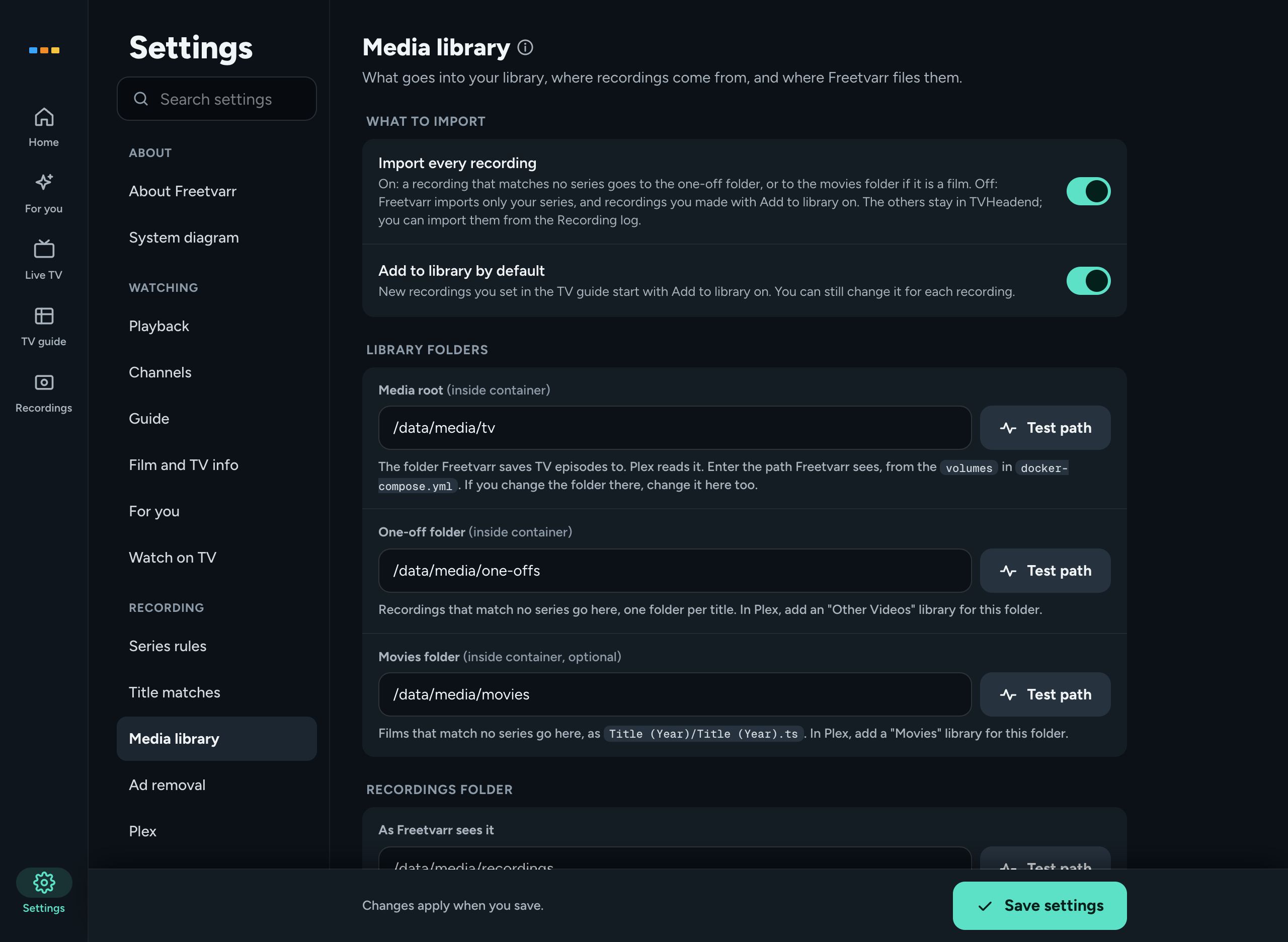
Settings
Freetvarr has no login. Anyone who can reach the port can see everything and change settings, including the TVHeadend, Sonarr, and Radarr credentials it holds. CSRF protection (blocks forged requests from other sites), rate limiting, a strict CSP (a browser rule that limits which scripts run), and noindex headers are in place, but the design assumes a home network you trust. Do not port-forward or reverse-proxy it to the internet. docs/DEEP_DIVE.md covers the supply-chain hardening and the HTTP security headers. SECURITY.md covers vulnerability reporting and the accepted residual risks.
docs/DEEP_DIVE.md holds the architecture diagrams, the TVHeadend API surface, the import state machine, the ad-removal pipeline, the full environment reference, Docker deployment, the security model, and local development. The documentation site shows the same page.
- Troubleshooting overview
TEST CONNECTIONfailure- No tuner found
skippedrecordingspartialrecordings- Slow imports
- Permission errors
- Empty or thin guide
- Wrong ad cuts
- Wrong timestamps
The troubleshooting guide has the full list, keyed by symptom. The common snags are below.
- Under host networking, neither Docker container is on a Docker bridge network, so container names do not resolve. Use
http://<host-ip>:9981, nothttp://tvheadend:9981. HTTP 401with no username means TVHeadend wants a login.HTTP 403means a wrong password, an allowed-networks prefix that leaves out the host, or a missing right.- In TVHeadend's web interface, check that the access entry has Admin, Streaming, and Video recorder rights. TVHeadend evaluates access entries from the top of the list down.
- The TVHeadend Docker container must run with host networking (the example Docker Compose file does this). Network tuner discovery broadcasts do not cross Docker's private network.
- On a Mac, Docker Desktop and OrbStack cannot find a network tuner on their own. In the Channels step of setup, press Enter the tuner's address and enter the tuner's IP address.
- On any tuner, open Configuration → DVB Inputs → TV adapters in TVHeadend's web interface. An empty list means TVHeadend sees no tuner: check the USB passthrough, the driver, or the SAT>IP/IPTV settings.
- TVHeadend has no finished file yet (post-recording padding keeps a recording open for up to ten minutes), or it reported a path outside the recordings folder Freetvarr can see. Press the row for the full error and the fix.
- The imported file came up more than
1MBshort of what TVHeadend reported. The next sync imports the file again. If it stays short, the source is short; a weak signal usually causes data errors in TVHeadend's entry.
- A progress bar means Freetvarr copies the file, because the recordings folder and the media library are on separate mounts or disks. Put both under one mount on one disk, and the copy becomes a hardlink (One shared mount).
- Set
PUID/PGIDto match the owner of the bind-mounted host folders, and use the same pair for both Docker containers. Freetvarr hardlinks and deletes files TVHeadend created.
- Without an XMLTV feed, you get only what the broadcast signal carries. TVHeadend by hand covers a free Australian feed and the sources for other countries.
- After you install a grabber script, restart TVHeadend (
docker compose restart tvheadend). TVHeadend looks for grabbers at startup only.
- Comskip's accuracy varies by channel. Set the series to Detect mode first, and check the breaks in the recording log before you switch to Cut.
- A scan uses a lot of CPU: allow about 30 minutes per 75-minute recording on a dual-core Celeron.
- Cuts fall on the nearest keyframe, so a second or two either side of a break is normal. To recover a bad cut, rename the
<file>.ts.origbackup back.
- Choose your time zone in Settings → SYSTEM → Schedule. Freetvarr shows every timestamp in that zone, whatever device you browse from. A
TZin your.envonly pre-fills the zone.
This project:
- Is licensed under the GNU GPLv3 License.
- Is not affiliated with or endorsed by SiliconDust, TVHeadend, Plex, Sonarr, Radarr, or Fetch TV.
- Began as a fork of Fetcharr, with the Fetch TV backend replaced by TVHeadend.
- Is written with the assistance of AI and may contain errors.
- Is intended for educational and experimental purposes only.
- Is provided as-is with no warranty; use at your own risk.
If you hit a problem or want to compare notes, start a thread in Discussions.
To support the author's work on this project:
Buy Me a Coffee | GitHub Sponsorship
GPL-3.0-or-later. See LICENSE.