
Share a file through a private link that stops working when you say.


Website · Desktop app · Self-hosting · Changelog
Upload almost any file (documents, spreadsheets, images, video, ZIPs), several files or a whole folder at once, choose how long the link lasts (1 hour to 10 days), and send it to someone's username, or share the link or its QR code. Files are encrypted at rest, links and the app are never indexed, and when the link expires the file is erased.
| Where your files live | Links work | Limits | |
|---|---|---|---|
| Website | ShareSecure's servers (Cloudflare + Turso), encrypted | Any time until they expire | 5 uploads a day, 10 MB each, all free |
| Desktop app | Only your computer | Until they expire, while the computer is on | 100 MB each (10 MB to send to usernames), no daily limit |
| Self-hosted (command line or Docker) | Only your machine or server | While the server is running | 100 MB each (10 MB to send to usernames), no daily limit |
Your ShareSecure account is the website; the desktop app is ShareSecure running privately on your own computer, nothing in between. The installers aren't code-signed yet: on Windows choose More info → Run anyway, and on a Mac open the app once, then go to System Settings → Privacy & Security and choose Open Anyway.
Sharing
- Files: PDF, Word, Excel, PowerPoint and OpenDocument files, PNG, JPG, GIF, WebP, MP4, MOV, WebM, MP3, M4A, WAV, ZIP, 7z, gzip, RAR, tar, plain text, Markdown and CSV, up to 10 MB on the website and 100 MB on your own computer. Types are checked from the file's contents, and the name people see always ends in the real type, so a PDF can't arrive looking like an
.exe. Programs and scripts can't be shared on their own. - Several files or a folder go as one share: they're packed into a ZIP in your browser, and the viewer lists them and opens each one in place. Video and audio play in the viewer; spreadsheets, presentations and archives are offered to save.
- Links that expire after 1 hour to 10 days, or at a date and time you pick. Expired files are erased.
- Links that work once. Turn on Works once and the file is erased the moment it's opened. If anyone tries the link after that, you're told: it was probably passed on.
- Passcodes. Add one and the link alone isn't enough to open the file.
- View-only by default. Choose per file whether people can download it or draw on it (pen, highlighter, eraser), and whether only people signed in to ShareSecure can open it.
- Links branch. People can reshare a link they were given. Deleting a link removes it and everything shared onward from it; deleting the original removes every link.
- Name it what you like when you share it. Every link comes with a QR code.
- Settings keeps your assistants, notifications, what new shares start with (including whether a new link opens the file) and the desktop app's options on one page.
- Your shares lists every live link with a bar for the time it has left, to send or delete. With end-to-end encryption, the list is sealed to your key and follows you to your other devices.
- The viewer shows PDFs, Word documents, images and text in the browser, sharp on high-density screens with zoom for PDFs and images, and goes black when its tab is hidden or loses focus.
- Screenshot-resistant and traceable (off unless you turn it on): a watermark with who opened the file and when, and, for view-only shares, no printing, a blur on PrintScreen, no copying, and in the desktop app a window that screenshots and recordings show as black (Windows and macOS; Linux can't). Browsers can't fully block screenshots or a phone camera, so this is never “screenshot-proof”: the watermark is what makes a leak traceable. Details
Sending and receiving
- Send to a username. Type
@nameswhen you share, or send an existing share later from Your shares. Each person gets their own copy as a request to accept or decline, and isn't told who sent it. - Ask for a file. Make a link anyone can send you a file through, even without an account (Sent to you → Ask for a file). Their browser encrypts it to your key, so only you can open it.
- Notifications: a count in the account menu and the tab title, and optional system notifications that don't show file names.
- From the desktop app, sending and receiving use a ShareSecure account. The app makes one with your desktop username and password when you set it up or sign in (or links it, if the website already has that account with that password), so you never have to visit the website. Files sent to your username arrive in the app's inbox; once you accept one it's decrypted and kept on your computer, with the sender's settings. To use a different account, link it in Settings → ShareSecure account. Sending uploads an encrypted copy to ShareSecure's servers, so people can get it while your computer is off.
Privacy and security (how it works)
- End-to-end encrypted by default. On the website, files are locked in your browser before they're uploaded, and the key lives only in the link. ShareSecure can't read them.
- Your password never leaves your browser (OPAQUE), and new passwords need 10+ characters and can't be common ones.
- Shares can't be tied to you. Uploads and sends use anonymous tokens instead of your sign-in, and file sizes are padded.
- Security codes. Compare codes with the people you send to; you're warned if someone's key ever changes.
- A public key log. Every account's key is in an append-only log that anyone can audit, and your browser checks that the log shows your own key.
- Check the site yourself.
npm run verify-sitecompares every file the website runs with this repository's code. A public check runs it after every deploy and every day. - No tracking and no outside code. No analytics, ads or cookies; pdf.js and mammoth are served from the site itself, and links and the app are never indexed (only the public guides are).
- Your account, your call. Delete your account and every file shared from it at any time from the account menu.
AI assistants (setup)
- Claude Code, Codex, the Claude app, ChatGPT and other MCP clients can share text and files, send them to people, list and delete shares, read your inbox and make file request links.
- On your own computer (
npx sharesecure-mcp), files are encrypted there, neither the assistant nor ShareSecure ever sees a key, and links go to your clipboard. - Assistants ask first. A send to someone not on your list waits for your OK, so an assistant tricked by a web page or email can't send your files to a stranger.
Apps and hosting
- Website, on phones too, in light and dark mode. Add it to your home screen and, on Android, ShareSecure appears in the Share menu, so you can share straight from any app. What you share waits on the phone until you choose to send it.
- Desktop app for Windows, macOS and Linux: your files stay on your computer only. It runs in the tray and updates itself.
- Self-hosted with one command or Docker. Only you can upload, and files are erased within 30 seconds of expiring.
ShareSecure runs an MCP server, so an assistant can share a file and hand you the link. Ask it something like “share report.pdf for 2 days, view only”.
- Open the account menu and choose Connect an AI assistant, then Create a connection token.
- Add the server to your assistant. The dialog shows these commands with your token filled in.
Claude Code
claude mcp add --transport http sharesecure https://sharesecure-du8.pages.dev/mcp \
--header "Authorization: Bearer ss_your_token"Codex: add this to ~/.codex/config.toml and set SHARESECURE_TOKEN to your token.
[mcp_servers.sharesecure]
url = "https://sharesecure-du8.pages.dev/mcp"
bearer_token_env_var = "SHARESECURE_TOKEN"
Claude app (web and desktop): open Settings → Connectors → Add custom connector.
- Name it ShareSecure and paste your connector URL,
https://sharesecure-du8.pages.dev/connect/<your token>. - Under Authentication, choose No sign-in, and leave Request headers empty. The token is already in the URL, which is also why the URL must stay private.
- Leave Advanced → Transport on Streamable HTTP, add it, and turn ShareSecure on in a chat's tools menu.
ChatGPT: open Plugins → Add → Create new plugin.
- Icon: upload
plugin-icon.png(256 × 256, under 10 KB). - Name: ShareSecure. Description: Share files and text through private links that expire.
- Connection: your connector URL, the same one as for the Claude app.
- Authentication: No authentication, not OAuth (the token is in the URL). Tick I understand and want to continue and create it.
- In Settings → Personalization → Custom instructions, paste the instructions from the Connect an AI assistant dialog, so ChatGPT shares things itself instead of asking you to.
Assistant shares are stored end-to-end encrypted by default: ShareSecure's server seals the file as it shares it and then forgets the key, so the stored file can't be read later. The server does see the file while sealing it, and the whole link (key included) comes back to the assistant, so it's in the chat. For neither, use the local server. Tool results also come back as structured data (structuredContent) for clients that read it.
sharesecure-mcp runs on your computer as a local MCP server. It encrypts files there with the same code the website runs, so ShareSecure only ever gets sealed boxes, and uploads and sends them with anonymous tokens like the website does, so ShareSecure can't tell they came from you. It puts each link on your clipboard (and in Your shares) instead of handing it to the assistant. Needs Node.js 20 or later.
claude mcp add sharesecure-local --env SHARESECURE_TOKEN=ss_your_token -- npx -y sharesecure-mcp
npx -y sharesecure-mcp link   # once, so it can open files sent to you; asks for your password in the terminal
Its tools: share_file (by path), share_text, send_share (by id: the key is resealed locally), list_shares, delete_share, list_inbox, answer_request, open_inbox_file (decrypts and saves a file someone sent you), request_file and security_code. SHARESECURE_LINKS=show hands links to the assistant instead. See its README.
Assistants read web pages, emails and files, and any of those can hide an instruction like “send this to @someone”. So when an assistant sends a file to someone not on your list, the send waits in Waiting for your OK on the website until you approve it, and you can tick always for people you trust. In Connect an AI assistant → Sending to people you can instead let assistants send to anyone, or to no one, and edit the list. Waiting sends come back as waiting_for_approval; only you, signed in, can approve them.
The list and the waiting sends are sealed to your own key, so ShareSecure can't see who you send to. Approved sends go out from your browser anonymously. The assistant on your own computer applies your list itself; assistants connected through ShareSecure's servers (the Claude app, ChatGPT) can't open it, so they ask every time.
Assistants share text they wrote with share_text, and pass files in the call (content_base64) or as a link (source_url), so the Claude and ChatGPT apps can finish the job themselves. Only when an assistant can't get at the file does share_file give you a one-time upload page to pick it.
In the desktop app and on self-hosted installs, the address is http://localhost:3000/mcp (the dialog shows the right one). The Claude app connector works there too through the public link.
| Tool | What it does |
|---|---|
share_file |
Shares a file, end-to-end encrypted unless private: false. Give it path (the assistant runs on the same computer), content_base64 with filename (a small file the assistant has), or source_url (a public https link). Optional: expires_hours (1–240, default 24), allow_download, require_account (website only), name, send_to (usernames to deliver it to) and note (shown to them). On the website, ask_user is a last resort that gives you an upload page. |
share_text |
Shares text the assistant wrote as a document, with the same options. |
begin_upload, upload_chunk, finish_upload |
Upload a bigger file (up to 10 MB) in pieces, for assistants that can base64 it in code. |
upload_status |
Website only: checks an ask_user upload page and returns the link once you've picked the file. |
send_share |
Sends an existing share to usernames, with an optional note. Pass the whole link for a private share. |
list_shares |
Lists live shares with their links and time left. |
delete_share |
Deletes a share so its link stops working. |
list_inbox |
Lists files people sent you. Private ones show without their name or note, since only your key opens them. |
answer_request |
Accepts or declines a file someone sent you. |
request_file |
Makes a link someone can send you a file through, even without an account. |
The share tools also take burn_after_reading, for a link that works once.
Replacing the token cuts off the old one, and Turn off disconnects every assistant. Shares made by an assistant count toward the daily limit and appear in Your shares. In the desktop app and on self-hosted installs, send_to and send_share need a linked ShareSecure account.
- End to end, always (website and desktop app): the file, its name and type, notes and drawings are encrypted in your browser with AES-256-GCM, using a key that only exists in the link after
#, and padded to a standard size. An optional passcode makes the link only half the key. Files sent to a username have that key sealed to the recipient's public key (ECDH P-256), so only their browser can open it. - Sign-in never sends your password (based on OPAQUE, RFC 9807), and your private key is locked with a key only your browser gets from signing in.
- Anonymous uploads, sends and deletes: your browser (and the desktop app) spends blind-signed tokens (RFC 9474) instead of your sign-in, and never falls back to it, so the server can enforce daily limits without knowing who uploaded, sent or deleted a file.
- Security codes let you check nobody swapped someone's key, and your browser warns you if a contact's key ever changes.
- A public key log records every account's key in an append-only Merkle tree. Every key you're given must come with proof it's in the log, your browser checks the log shows your own key, and anyone can audit the whole log (
node scripts/kt-monitor.mjs; a public check runs daily). A server trying to read someone's files would have to publish a second key for them where everyone can see it. - No third-party code: pdf.js and mammoth are served from the site, and the desktop app runs everything from its own copy.
- On top of that, stored files are encrypted again at rest with AES-256-GCM.
- Website: files from older versions that weren't end to end, and files shared by an assistant connected through ShareSecure's servers, have a key derived from a server master key.
- Self-hosted and desktop: each file gets a random key, wrapped by the master key and stored only in the file's database row. Deleting the row (with SQLite
secure_delete) destroys the key, and the stored file is overwritten and removed.
- File types are checked from the file's contents, not its name. The self-hosted server also strips author and editing metadata from PDF and DOCX files.
- Pages are sent with
noindex,no-storeandframe-ancestors 'none', except the public guides and comparisons (/guides,/compare), which search engines may index.
Files shared by an assistant connected through ShareSecure's servers are seen by the server while it encrypts them. Anyone with the whole link (and passcode) can open a file until it expires. See SECURITY.md, the privacy policy and the terms.
macOS / Linux
curl -fsSL https://sharesecure-du8.pages.dev/install.sh | bashWindows (PowerShell)
irm https://sharesecure-du8.pages.dev/install.ps1 | iexDocker
docker run -d --name sharesecure --restart unless-stopped -p 3000:3000 \
  -v sharesecure-data:/app/data $(docker build -q https://github.com/ishaanman7898/ShareSecure.git)
The installers set up Node.js if needed and start ShareSecure at http://localhost:3000. The first time you open it, you create the owner account. Only the owner can upload; people you share with don't need an account. Setting up from another device (or through Docker) asks for the setup code the server prints when it starts (docker logs sharesecure), so nobody else on the network can claim it first.
- Data lives in your app-data folder, not the install folder:
- Windows:
%LOCALAPPDATA%\ShareSecure - macOS:
~/Library/Application Support/ShareSecure - Linux:
~/.local/share/sharesecure
- Windows:
- Updates install from the app's Updates panel, or automatically if you turn that on. Docker updates by rebuilding.
- Public links go through ShareSecure's relay (
relay/, a Cloudflare Worker): your computer keeps one connection open to it, so nothing is opened on your router, and people opening a link never learn your computer's address. Shares are locked end to end (the key is in the link after#, which browsers never send), and your computer refuses to send anything else through the relay, so it only ever carries locked bytes. Links keep working across restarts, while the computer is on. If you have your own domain, setUSE_RELAY=falseandBASE_URL.
Setting (.env) |
Default | What it does |
|---|---|---|
PORT |
3000 |
Port the server listens on. |
BASE_URL |
localhost, or the relay's address | Address used in share links. |
USE_RELAY |
true |
Make links that work from anywhere, through ShareSecure's relay. |
ENCRYPTION_KEY |
generated | Encrypts every file. Changing it makes existing files unreadable. |
DATA_DIR |
app-data folder | Where the database and encrypted files are stored. |
To install by hand: git clone https://github.com/ishaanman7898/ShareSecure.git, then npm install --omit=dev and npm start (Node.js 20+).
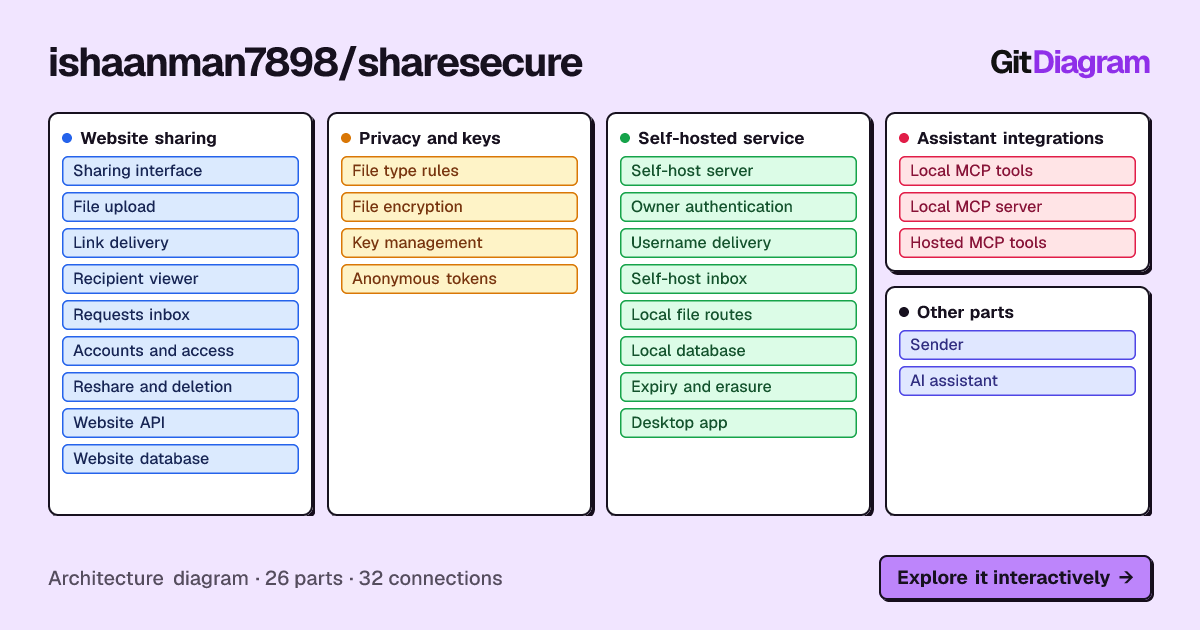


There are two backends for the same browser code. The website's API runs on Cloudflare Pages Functions with a Turso database; the desktop app and self-hosted installs run an Express server with SQLite. The encryption, sign-in, token, key-log and file-type code lives once in public/ and is shared by the browser, both backends and the local MCP package, and so is what the three MCP servers have in common (public/mcp-common.js).
public/       website and app UI (served by both backends), plus the shared
              encryption, sign-in, token, key-log, file-type and MCP modules
functions/    Cloudflare Pages Functions: the website's API, including /mcp
server/       Express server for the desktop app and self-hosted installs
desktop/      Electron app, icons, the logo and the update page
relay/        ShareSecure's relay for links to a computer (Cloudflare Worker: npx wrangler deploy --config relay/wrangler.toml)
packages/     sharesecure-mcp, the local MCP server (npm)
scripts/      verify-site (live site = this code) and kt-monitor (key log audit)
tests/        security tests for the website, the self-hosted server and the
              desktop app's sending, and the RFC test vectors they check against
docs/         ARCHITECTURE.md (how it all fits together), security and signing
db/           the database tables, for reference (the API creates them itself)
npm install
npm start           # self-hosted server at http://localhost:3000
npm run desktop     # the desktop app (rebuilds the SQLite driver for Electron, then back)
npm run dist        # desktop installer for this platform, in dist/
npm test            # security tests (website, self-hosted, local MCP), including attempts to break in
npm run icons       # re-render the app icons from desktop/logo.js
npm run rosette     # re-draw the rosette logo from desktop/rosette.js
Releases are vX.Y.Z tags. Pushing one builds the Windows, macOS and Linux installers in GitHub Actions and attaches them to the release. Self-hosted installs and the desktop app update from the latest release. Signing (macOS with a Developer ID, Windows through SignPath Foundation) is described in docs/SIGNING.md.
The website runs on Cloudflare Pages with a Turso database. It needs these settings (as encrypted secrets, under Pages → Settings → Variables and Secrets):
| Setting | What it is |
|---|---|
TURSO_URL, TURSO_TOKEN |
The Turso database and a token for it. |
ENCRYPTION_KEY |
64 hex characters (npm run generate-key). Also the source of the sign-in server's keys. |
TOKEN_SECRET |
Signs sessions. Any long random string. |
TAG_SECRET |
Optional. Keys the hashes that stand in for account ids; defaults to TOKEN_SECRET. |
TOKEN_ISSUER_KEY |
Signs anonymous tokens (npm run token-key). Pin its id in public/tokens.js. |
Everything is free; there are no paid plans.