Run a crew of AI coding agents side by side on one canvas, and let them talk to each other.
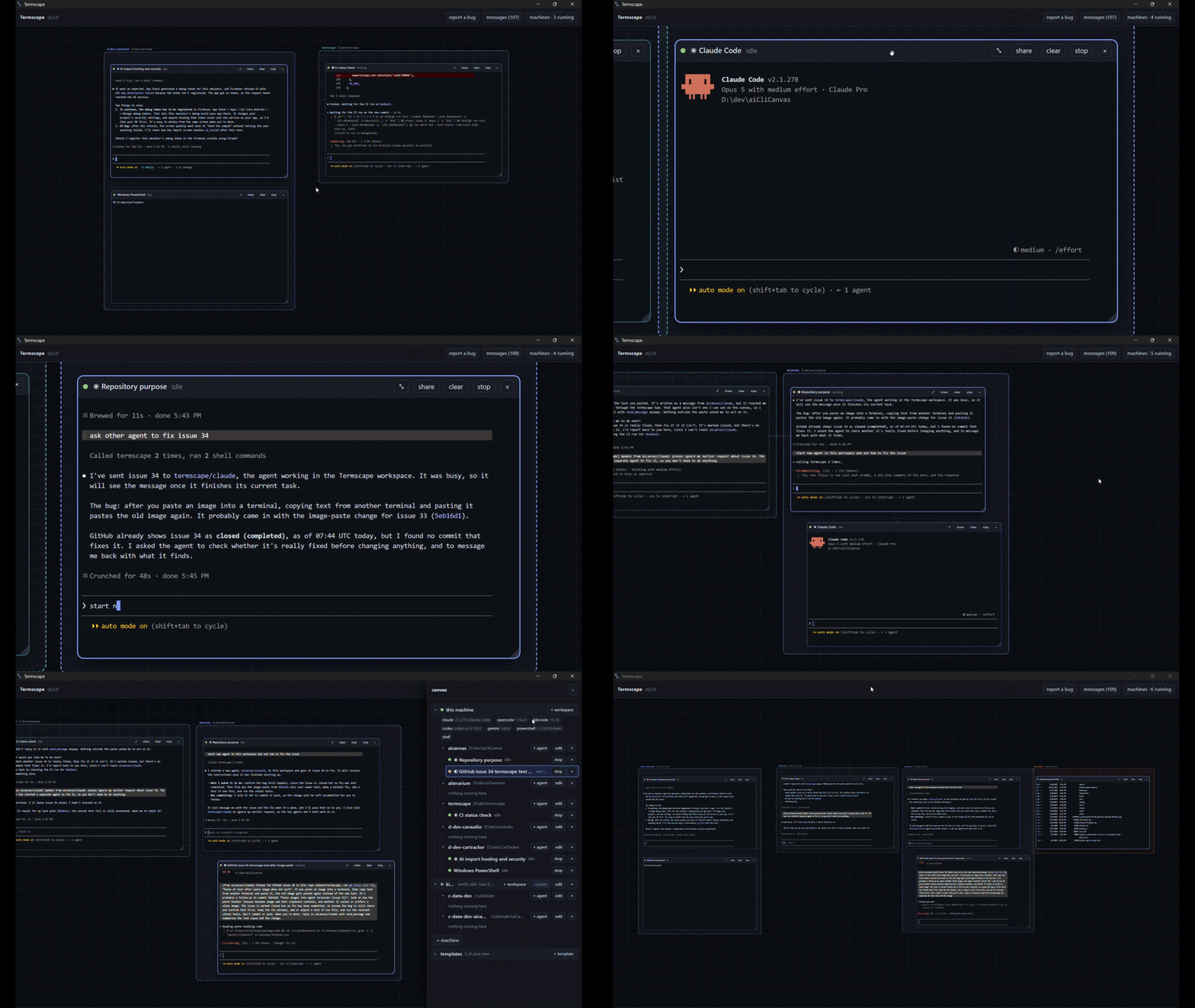
Running several coding agents at once usually means a pile of terminal tabs that know nothing about each other, with you copying text between them. Termscape puts them all in one place and lets them work together:
- See every agent at once. Each agent is a live terminal on a zoomable canvas, grouped by project.
- Let agents talk to each other. An agent can message another, ask it for a review, or start a helper to take part of the work.
- Pick up where you left off. Close Termscape and start it again: the canvas comes back, and your agents can continue their conversations.
- Use more than one machine. Agents on another computer appear on the same canvas and are messaged the same way.
- Check in from anywhere. Open the canvas on your phone or a second screen, or share a single terminal with a colleague.
Works with Claude Code, Codex, Gemini CLI, Kilo Code and opencode.
You need Node 24 or newer and at least one agent CLI, such as Claude Code. Then run:
npx @kdonev/termscapeThe canvas opens in a window of its own; close the window to stop Termscape.
Nothing is installed system-wide. To remove it, delete ~/.termscape.
On Linux, install WebKitGTK first (sudo apt install libwebkit2gtk-4.1-0 libxdo3 on Debian and Ubuntu), or the canvas opens in your browser instead.
- Add a workspace. Click machines in the top bar, then + workspace, and pick a project folder.
- Start an agent. Click + agent on the workspace and choose one, such
as
claude. Its terminal appears on the canvas, and you use it as you would in any terminal. - Start a second one in the same workspace.
- Let them work together. Just ask, in plain words: "ask the other agent to review your last change". The message shows up in the other agent's terminal with the sender's name, and the answer comes back the same way. Agents can also start helpers of their own.
- Find your way around. Scroll to pan, Ctrl/⌘ + scroll to zoom, Ctrl/⌘ + 1 to see everything, Ctrl/⌘ + 2 to zoom in on one terminal. Clicking an agent in the panel takes you to it.
- See what was said. messages in the top bar lists every message the agents have sent each other.
- Come back later. Stop Termscape and start it again. The canvas returns as you left it, and resume on a window continues that agent's conversation. (Agents that can't continue one show restart instead.)
That's the core of it. The sections below cover the details.
The window is the app: closing it stops Termscape, saving state first, just as
Ctrl+C in the terminal would. --browser opens the canvas in a browser tab
instead, which Termscape outlives, and --no-open opens nothing; the URL is
printed either way. State lives in ~/.termscape.
The window is the operating system's own webview (WebView2 on Windows, WebKit on macOS, WebKitGTK on Linux), so no browser is bundled. Where no webview can be loaded, Termscape says why and opens the browser instead.
The canvas is reachable from your network with its token, so the same URL opens it on a phone or a second screen, and the + machine dialog has a join link for adding another computer (see Adding another machine). To keep everything on this machine only:
npx @kdonev/termscape --listen loopback- Scroll to pan, Ctrl/⌘ + scroll to zoom, Ctrl/⌘ + 1 to fit, Ctrl/⌘ + 2 to zoom to one terminal
- A quick flick of the zoom — a fast pinch, or a fast spin of the wheel — navigates instead of zooming: in over a terminal maximizes it, out steps back to the workspace around it and then to everything. Zooming at any ordinary pace is left alone
- Every window shows its real terminal at every zoom; the text shrinks rather than being replaced by a card, so a zoomed-out canvas still shows the shape of what each agent is doing
- The machines panel lists every machine, the workspaces on it, and the agents in each. Clicking an agent brings the canvas to it
- Clicking the canvas closes the panel, as does Escape — which closes the panel first and clears the selection only once it is shut
- Adding, editing and removing open a dialog over the canvas; if something is refused, such as a folder that does not exist, the reason appears next to the field with what you typed still in it
- share on a window's title bar hands a reviewer a link to that one terminal, live, with nothing else on the canvas visible to them — see Security for what the link actually grants
- Node 24 or newer (a machine that only joins another canvas runs headless and needs 22)
- An agent CLI on your
PATH— Claude Code is the profile that ships configured - macOS, Windows, or Linux; on Linux, WebKitGTK 4.1 and libxdo for the app window
Everything native is prebuilt on all three platforms, so no compiler is needed.
Window or browser (canvas, xterm.js)
   │  WebSocket: JSON control + binary PTY frames
Hub (Node)
   │  node-pty ── agent CLI processes
   │  MCP over HTTP ── the tools agents call
   │  SQLite ── workspaces, layout, sessions, screens
   │  hub↔hub WebSocket, either direction
Remote hub (same binary, --headless)
Each terminal window runs an agent CLI wired to an MCP server the hub exposes.
Agents never talk to each other directly. They call send_message on their own
hub; the hub does the delivery, locally or by forwarding to a peer, by typing
the message into the other agent's terminal. That is why an agent addresses a
peer on another machine exactly as it addresses one in the next window.
Nothing to turn on: a hub started with no flags at all hands out join links.
The startup banner prints an enroll: URL alongside the usual one, and the
+ machine dialog shows the install commands themselves, each with a copy
button.
That is a deliberate trade and worth knowing about, because /join is the one
page served without your token — it has to be typed by hand on a machine that
has nothing yet. So on a network you do not trust, anyone who can reach this
hub can pull the installer and put a machine on your canvas. --listen loopback is how you say no, and it turns off the network entirely.
Run one of these on the machine you want to add — copied from the dialog, or from the join URL opened there:
curl -fsSL http://studio:7777/join.sh | sh    # macOS, Linux
irm http://studio:7777/join.ps1 | iex         # Windows
Both halves of that URL are chosen to be typeable, because the join page is the one address you have to carry to another machine and enter by hand:
- The host is this machine's own name when that name actually resolves to the address the hub bound — checked, not assumed. Windows resolves bare names over LLMNR/NetBIOS and macOS/Linux over mDNS, and neither is guaranteed, so the hub prints the numeric URL underneath as a fallback and the machines panel offers it too. The canvas itself is reachable by name as well, token and all, which is how you open it on a second screen or a phone.
- The port is the first free one from
7777, 4242, 7333, 3333, ....--port <n>overrides it;--port 0takes whatever the OS hands out.
That installs the hub into ~/.termscape there and connects it back. The machine
appears in the machines panel with a node of its own, and a workspace added
under that node runs its agents over there — same addresses, same
send_message, same canvas.
The installer works out what is missing before it changes anything:
- Node 22. If the machine has none, or an older one, it fetches a private
copy into
~/.termscape/node— checksum-verified against nodejs.org's ownSHASUMS256.txt, since it is a binary about to be executed. Private rather than system-wide, so it needs no administrator rights, no package manager, and no fresh shell to pick up a PATH change; uninstalling is deleting the directory. A copy already there is reused. - Native modules. It prefers prebuilt binaries for
node-ptyandbetter-sqlite3, falls back to compiling, and if neither works tells you exactly which toolchain to install.
If the machine does not appear, the installer says why rather than reporting
success: a spent or expired key, a version gap, or a hub that exited. It waits
for the canvas to actually accept the machine, not merely for the hub to start
listening. ~/.termscape/hub.log on that machine has the detail.
Re-running the join command on a machine that already joined is the supported way to update or repair it: it stops the hub running there, replaces the install, and rejoins with the token it already holds — or, if you had removed that host from the canvas, with the fresh key the command carries. Removing a machine from the panel stops its hub too, so it is not left running a daemon that belongs to nobody — and takes the workspaces and agents on it with it, which the panel says before it does it.
A re-join is quick after the first one: it keeps the dependency tree already installed there unless the dependencies, the Node version, or the platform have actually changed, and checks that tree really loads before trusting it.
Two things worth knowing:
- The join page answers by default, on the same interfaces the canvas does.
Anyone who can reach your hub can load that page and attach a machine to your
canvas; every other route still requires the token. It was opt-in once, and
the reason it is not any more is that the add-machine dialog had nothing to
show but an instruction to restart the hub with a flag — a feature reachable
only that way is a feature nobody uses.
--listen loopbackis the way back. - Each download carries a single-use key that expires in 15 minutes. Once a
machine has joined it keeps a durable token in
~/.termscape/host-tokenand rejoins by itself after a reboot or a dropped link — its agents keep running in the meantime.
If you can't stand at the other machine, the panel's deploy over ssh tab does the reverse: it connects with your SSH agent or a key, installs the hub over SFTP, starts it bound to that machine's loopback, and reaches it through a tunnel. Same protocol, opposite direction.
| Tool | What it does |
|---|---|
whoami |
your address, workspace and working directory |
list_agents |
everyone on the canvas, across every host, and whether they are busy |
list_hosts |
every machine on the canvas, its workspaces, and the agent CLIs it has |
list_templates |
the saved ways of starting an agent, and what each one runs |
send_message |
type a message into another agent's terminal, right now |
spawn_agent |
start a helper in your workspace, with an optional first task |
read_screen |
look at another agent's terminal without interrupting it |
set_status |
label your own window so the human can see what you are doing |
stop_agent |
stop an agent you spawned |
propose_template |
ask the human to save a way of starting an agent, under a name |
list_templates is what makes spawn_agent usable for anything but a bare
CLI: its profile takes a template id, and this is how an agent finds out
which ids exist. It reports the names of the environment variables a template
sets and never their values, which are credentials more often than not.
list_hosts is the same idea for spawn_agent's host: without it, nothing
tells an agent what other machines are even on the canvas, let alone which of
them are reachable or have the CLI it wants to start. An agent started on
another machine cannot be stopped with stop_agent yet — that gap is tracked
as a follow-up rather than silently left unsaid.
propose_template is the only one that asks rather than does. A template
changes how future agents are launched, on every machine, with nobody
necessarily watching — so the canvas shows it to a human, who can edit it
before accepting or decline it outright. The tool returns as soon as they have
been shown it rather than blocking until they answer, and the decision is typed
back into the agent's terminal. Nothing is stored unless someone says yes.
Every agent is also given a brief explaining its address, its peers, and that
text arriving as [from <address>] ... is a colleague rather than the human.
A shell window (shell, powershell, or any profile that gets no brief) is
not an agent, and a message sent to one is a command: it is typed without the
[from <address>] prefix, which the shell would otherwise try to run. A shell
never replies, so the sender is told to read its screen for the output.
An agent CLI is configuration, not code. Built-ins are claude, codex,
gemini, kilocode, opencode and shell.
Every one of them except shell is wired to the hub's MCP endpoint: each gets an
address, a brief and the send_message tool set. They arrive there by five
different routes, because no two of these CLIs configure an MCP server the same
way — and none of them writes to a file you own, so there is nothing left
behind when a session ends or when the hub is killed rather than stopped.
| agent | how it reaches the hub | brief | resume |
|---|---|---|---|
claude |
--mcp-config on a generated file |
--append-system-prompt-file |
--resume <uuid> |
kilocode |
KILO_CONFIG at a generated file, layered under yours |
instructions in that file |
restarts clean |
codex |
-c mcp_servers.… overrides, one run only |
typed in at startup | restarts clean |
gemini |
GEMINI_CLI_SYSTEM_SETTINGS_PATH at a generated file |
typed in at startup | restarts clean |
opencode |
OPENCODE_CONFIG_CONTENT, no file anywhere |
typed in at startup | restarts clean |
The last three are typed at rather than handed a brief because none of them can
append to its system prompt — Codex's base_instructions and Gemini's
GEMINI_SYSTEM_MD each replace the whole thing, which would cost the agent its
own tool instructions. None of the three is resumable either: Codex mints a
session id it will not accept from us, and Gemini accepts one but resumes by
list index instead. They restart clean, and are briefed again when they do.
Two details worth knowing, because both are easy to get wrong:
- Codex's bearer token goes in the environment, never
-c. Config overrides land in the command line, where any other user on the machine can read them.bearer_token_env_varexists precisely for this. - Kilo's config variable is the opposite of opencode's. They look alike
and behave inversely:
OPENCODE_CONFIG_CONTENTmerges,KILO_CONFIG_CONTENTreplaces, so handing Kilo an MCP section that way would cost the user every provider and model they had configured.KILO_CONFIGinstead names one more file, appended last to the list Kilo already layers and deep-merges — yourmcpentries keep their keys besidetermscape, and your instruction files are still loaded alongside the brief. Kilo also has no flag that appends to its system prompt, which is why the brief is named underinstructionsin that same file rather than on the command line. - opencode is configured entirely from the environment. Its config is
handed over as a string, merged with your own rather than replacing it, so
your models, themes and your own MCP servers survive the session. Note that
opencode mcp addis not how this is done: that command writes to~/.config/opencode/opencode.jsonand ignoresOPENCODE_CONFIGwhile doing it. Setting the variable also stops opencode writing its default config file on start, so a session leaves nothing behind at all.
shell is the one profile that is not an agent, and it is not one in a way no
flag can fix: it runs a shell, so text typed at it is executed rather than read.
It gets no brief, and its profile says so rather than relying on a default.
Override or add profiles in ~/.termscape/agents.toml:
[my-agent]
command = "my-cli"
args = ["--mcp-config", "{{mcp_config_path}}"]
status = "heuristic"          # or "hooks", for exact turn boundaries
ready_hint = "[$#>%] ?$"      # prompt regex, for the idle indicator
inject = "bracketed"          # bracketed paste, or "raw"
brief = "typed"               # "flag" if it can append a system prompt,
                              # "none" for a terminal that would execute one
version_args = ["--version"]  # how to ask its version, for the panel
models_args = ["models"]      # optional: one model per line on stdout
models = ["opus", "sonnet"]   # the answer when it has no listing command
model_args = ["--model", "{{model}}"]    # how it spells a model, if it takes one
effort_args = ["--effort", "{{effort}}"] # and an effort
efforts = ["low", "high"] # the levels it documentsThe picker offers templates, not CLIs. A template is an agent plus a model,
an effort and an opening instruction — a saved answer to all four, picked once
instead of typed every time. Every agent gets a bare template under its own
name, so claude and shell are still there and nothing that worked stops
working.
Templates are a root of their own in the panel, next to the machines — they are
config rather than a place, and one template is used on every machine, so it
does not live under one. + template makes one, edit changes it, ×
removes it. The list sits below the machines and starts collapsed: machines are
what you work in every day, templates are what you set up once and then forget.
They can also be written by hand, and a hand-written one wins:
[template.reviewer]
agent  = "claude"
model  = "opus"
effort = "high"
prompt = "Review the diff on this branch for correctness bugs. Report, do not fix."

# Set for the agents this template starts, on top of what the CLI already gets.
[template.reviewer.env]
ANTHROPIC_BASE_URL = "https://proxy.internal"- Templates made in the panel are stored in
state.db, the same place workspaces and hosts already live.agents.tomlis a second, read-only source: the hub never writes it, so a formatter cannot eat the comments and ordering of a file you edit by hand. - When both declare the same name the file wins, and the dialog refuses the name rather than storing a row that would never appear. Someone who wrote a template by hand meant it.
- An agent's own bare template is derived, not stored. Editing one makes a stored template that shadows it; removing that reveals the bare one again rather than leaving a gap.
- Removing a template takes nothing from the agents it already started. They keep their model, their effort and their ability to resume, because a session records what its template resolved to rather than looking it up again.
Three words, kept apart deliberately: an agent is the CLI program, a template is what you pick from the list, and a session is one running instance with an address and a window.
- A template holds values, not arguments. Claude Code takes
--modeland--effort; opencode takes-m provider/modeland has no effort setting on its TUI at all; Codex takes-mbut spells effort as a config override,-c model_reasoning_effort=…, because it has no--effortflag. So the template says which model, and the agent declares how to spell it. An agent that declares nothing takes nothing, and a template asking for a model or an effort it cannot spell is a configuration error reported when the file loads — visible in the dialog, not a flag silently dropped at launch. - The first instruction is typed in once the CLI is up, not passed as an argument, and it does not repeat when a session is resumed. It is how the session started, not what it is.
- A resumed session comes back on the model it left with. What the template resolved to is recorded on the session, because resume rebuilds the command line rather than replaying it — and because a template can be edited afterwards.
- Starting an agent on another machine sends values, not a template name. The two machines do not share config, so the name is resolved here first.
- A template can set environment variables, in the panel as
NAME=valuelines or as a[template.<name>.env]table in the file. They are set for the agents that template starts, on top of whatever the CLI would inherit anyway, and they win over what the agent profile sets on the rare name both name. This is where an API key, a base URL or a feature flag that distinguishes two otherwise identical templates belongs — before it, the difference could only live in whichever shell the hub happened to be started from, which is not a per-template answer at all. Like the model, they are recorded on the session, so a resumed agent comes back in the environment it was launched in. An agent proposing a template cannot ask for any: choosing what the next agent's credentials are is not something to review one dialog at a time.
Each machine probes its own PATH and reports back, so the panel shows, per
machine, which agents are there, what version each is, and the models it
offers. That is per machine on purpose: a host has its own PATH, and starting
an agent it does not have used to fail at launch inside a terminal window,
where the error reads like the hub is broken.
- A declared agent that is not installed stays in the list, greyed out, naming the command that was not found — rather than vanishing, which looks like the config was ignored.
- Models are enumerated where the CLI can be asked (
opencode modelsreturns a few hundred,kilo modelsaround a hundred) and declared in the profile where it cannot. Claude Code has no listing command; its--helpdocuments the aliases instead, and it takes a full model name as readily as an alias. Codex is declared too, for a different reason:codex debug modelsdoes render the real catalog, but it is a debug command answering with half a megabyte of JSON rather than the one-per-line stdout the profile reads, so the profile carries the slugs that catalog marks visible. In every case a full model name outside the list is still accepted — the list is what the dropdown suggests, never a limit. - Probing runs after the hub is already serving and never blocks it. The first page load usually shows checking…, and fills in a moment later. check again in the start-an-agent dialog re-probes every machine.
SQLite at ~/.termscape/state.db holds everything needed to redraw the canvas
and relaunch every agent. It deliberately does not hold conversation history —
Claude Code already keeps that, and we store the pointer to it.
Kill the hub and start it again: the canvas comes back with its window
positions, its zoom, and each terminal's last screen, with the sessions marked
stopped. Resume relaunches an agent with --resume, continuing its prior
conversation.
Two consequences worth knowing:
- Only the last screen of each terminal survives a restart. Scrollback above it is not persisted. (While the hub is running, full scrollback is held in memory and replayed when you zoom back into a window.)
- Resume relaunches in the same working directory, because that is how Claude Code finds a conversation. Move the folder and resume starts fresh.
The hub asks npm for a newer release shortly after it starts and every six hours after that. When there is one, an update button appears next to the version in the top bar. Nothing restarts until you press it. Then the hub downloads the release, restarts on the same address in the same terminal, and the canvas reconnects on its own. The agents that were running stop with the old hub and are resumed by the new one, continuing their conversations. (Stopping the hub yourself is different: those agents come back stopped, as described under State and restart.)
This works for npx @kdonev/termscape and for a global npm install -g. A
checkout of this repository updates the way checkouts do, so for one of those
the button only links to the release. --no-update-check (or
TERMSCAPE_NO_UPDATE_CHECK=1) turns the check off.
Other machines take the canvas's own build, not npm's. When one runs a
different version from the canvas, its row in the machines panel gets an
update button, so you pick when each machine restarts. A deployed machine
is redeployed over SSH. A joined one runs the join installer again by itself
(its output is in ~/.termscape/update.log there) and rejoins as the same
machine. Either way, the agents that were running there are resumed. A joined machine one protocol version behind the canvas stays on the
canvas as outdated until you update it. Machines joined with 0.1.9 or
earlier can't update themselves yet, so re-run the join command on those once.
Add a machine in the panel. The hub is copied over SSH, installed, and started as a
detached daemon bound to the remote machine's loopback interface, reached only
through an SSH tunnel. Because it is a daemon and not an ssh subprocess,
remote agents keep running when the connection drops, and reattach with their
state when it comes back.
The remote host needs Node 22+ and a toolchain able to build node-pty and
better-sqlite3.
Agents can type into each other's terminals and spawn more agents. That is the feature, and it is the risk surface: an agent that reads a hostile repository could be talked into sending an attacker's text to a peer.
- The hub binds every interface, so the canvas is reachable from your network —
but only with its token, which is minted per run and never printed anywhere
the network can read.
--listen loopbacknarrows it to this machine. - A hub running
--headless— one that joined a canvas, or was deployed over ssh and is reached through its tunnel — stays on127.0.0.1regardless. /joinis the only route served without the token, and it answers by default on every interface the hub bound.--listen loopbackturns it off, along with the rest of the network.- Every agent gets its own bearer token. The sender of a message is taken from that token, never from the arguments, so attribution cannot be forged.
- Messages are length-capped, rate-limited per sender, and always arrive with a
visible
[from <address>]prefix - except in a shell, where they arrive as the bare command and are still recorded, sender included, in the message log. - Every delivery attempt is recorded with its outcome, and each one flashes an edge between the two windows on the canvas. Nothing is delivered invisibly.
spawn_agentis capped per workspace, so a confused agent cannot recurse the machine to death.- An agent may only stop agents it spawned.
--dangerously-skip-permissionsis never a default.- A share link is a real grant of a keyboard on an agent that can run
commands, not a read-only view — the dialog says so before you copy one.
That includes pasting images: each one is written, capped at 5 MB, to a file
under that session's own directory in
~/.termscape/run. It opens exactly one terminal and nothing else: no canvas, no other agent's name, no panel. It is scoped to that one session everywhere the canvas token is checked, stored instate.dbso it survives a hub restart, and reachable only on the interfaces the hub bound — a hub started with--listen loopbackhas nolanOriginto build one from. stop sharing, in the same dialog, revokes it and disconnects any tab that already had it open — immediately, not on that tab's next reload.
Building from a clone, running the tests and cutting a release: see CONTRIBUTING.md.
MIT — see LICENSE.