
Browse your movie library, open files in your default Mac player, or cast to DLNA TVs. TV casting includes web and CLI controls, resume, and queues. Samsung TVs also support remote buttons, text input, and app launching. No app on the TV. Optional TMDB metadata adds posters, synopses and cast. Ratings come from IMDb without an additional API key.
Light theme
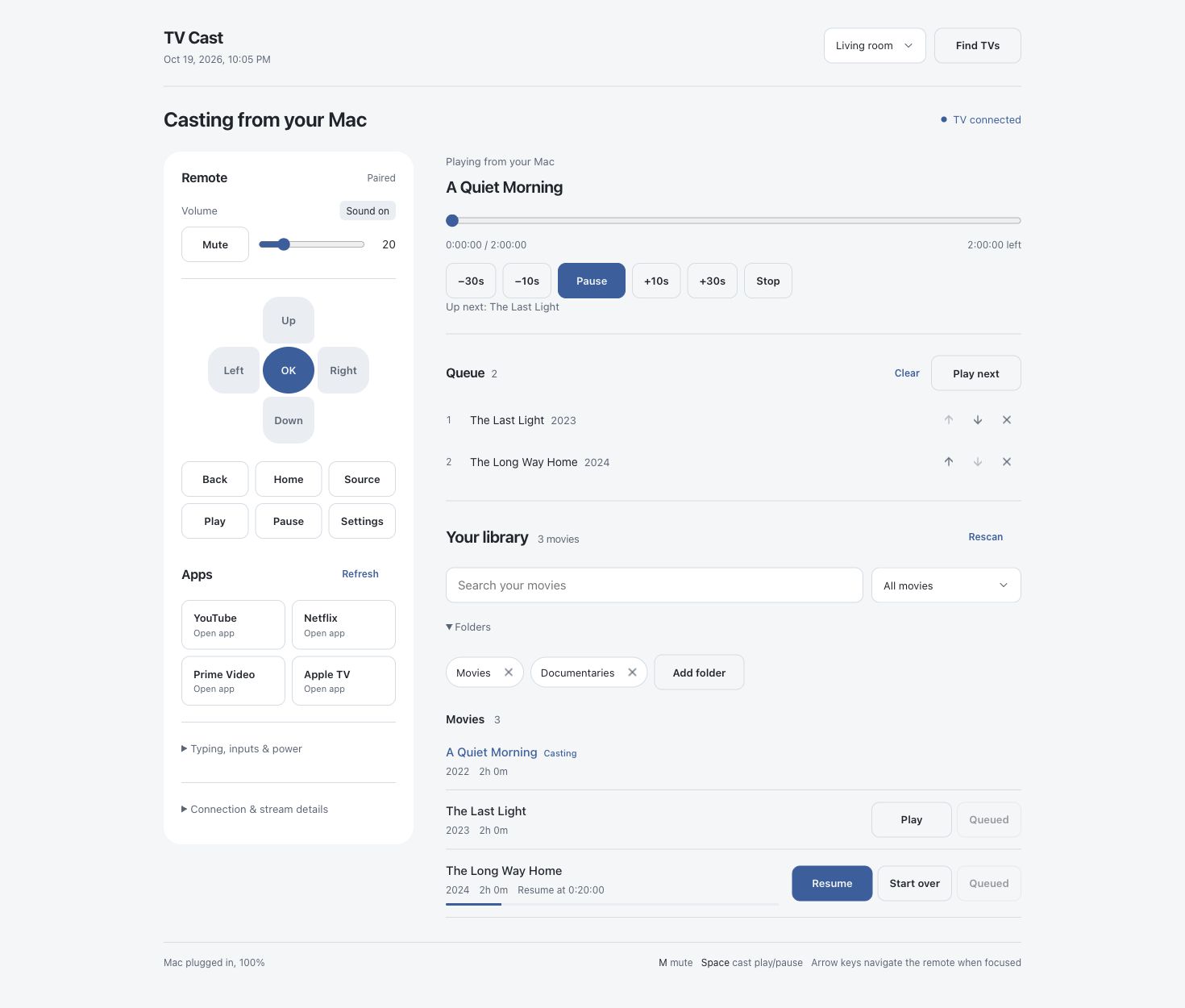
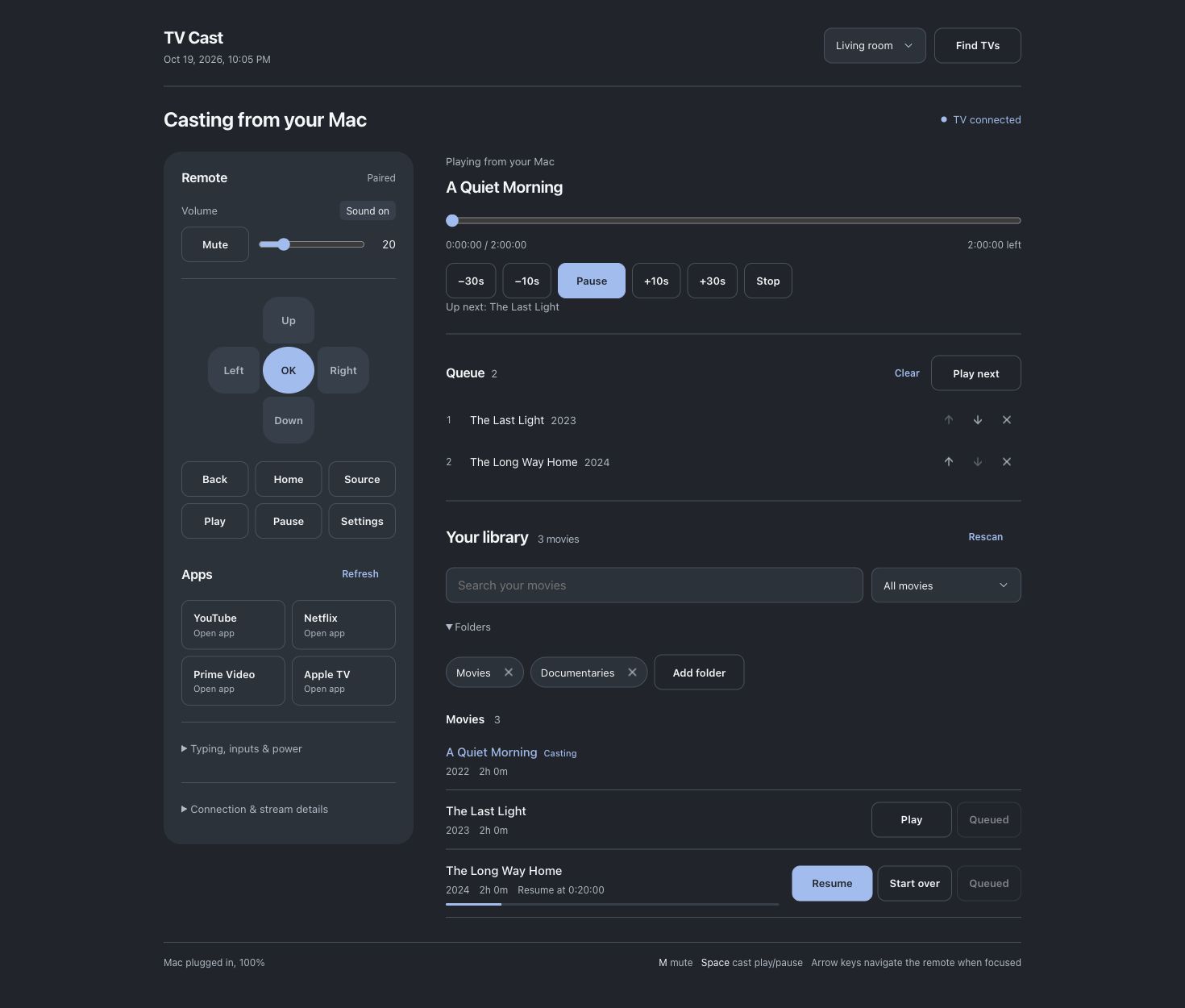
Screenshots show the TV controls with a demo library and simulated TV.
Needs macOS with the Command Line Tools (xcode-select --install).
Install with uv:
uv tool install tvcast
tv install                 # starts now and at every login
tv ui                      # open the control panel
pipx install tvcast also works. The package has no runtime dependencies.
Optional: brew install ffmpeg for measured file runtimes and TV compatibility checks.
Run from source
git clone https://github.com/thepushkarp/tvcast.git ~/Projects/tvcast
cd ~/Projects/tvcast
./tv install
./tv ui
Keep the checkout outside Documents, Desktop and Downloads; macOS restricts login services
there. To use tv from any folder, symlink it into a directory on your PATH.
The panel opens to Library in grid view. Browse collection folders or turn off Show subfolders as collections to see their movies together. Search, switch to list view, and sort by title, runtime, year or IMDb rating. Cards show the US age rating (G to NC-17) from TMDB. Genre, age rating and actor/director filters are available above the movies; select a person or genre on a movie's detail page to browse related films in your library. New files and due metadata retries are checked automatically every minute.
Sort defaults are title A–Z, shortest runtime, newest year and highest score. The arrow reverses the direction. The theme button cycles through Auto, Light and Dark; Auto follows the Mac's appearance setting.
- Play icon: open the file in its default Mac application (IINA if configured in Finder).
- Cast icon: switch to TV and play on the selected TV. If none is selected, choose one there or use Find TVs. Allow local-network access if macOS asks.
- Settings: manage folders and add a TMDB API Read Access Token for movie information. Browsing and local playback work without TMDB or a connected TV.
- Refresh metadata, beside Rescan in the Library heading: update library information and posters while preserving manual matches and movies explicitly left unmatched. A movie's detail page also has its own refresh action.
The TV tab holds volume, playback, subtitles, queue and remote controls. On Samsung TVs, use Remote → Pair with TV, then press Allow on the TV. Apps switches supported TV apps; Open on TV appears only after the TV confirms it. Add movies using Add to TV queue on the movie detail page; adding does not start playback.
| Command | What it does |
|---|---|
tv ui |
open the control panel |
tv open dune |
play a movie, resuming where you left off |
tv open "dune (2021)" --from-start |
pick by year, start from the beginning |
tv pause · tv play · tv stop |
|
tv seek 1:05:00 |
jump to a time |
tv volume 20 · tv mute on |
|
tv subs · tv subs french · tv subs off |
list subtitles, switch language or turn them off |
tv subs --add ~/Downloads/film.srt |
show your own subtitle file with the playing movie |
tv key home · tv key down down enter |
press remote buttons (Samsung) |
tv status |
what's playing, and where |
tv tvs --find · tv use 2 |
find TVs, switch to another TV |
tv shortcut on · tv shortcut off |
add or remove a TV Cast app, so Spotlight opens the panel with no address to remember |
tv --help lists everything. To remove TV Cast: tv uninstall.
Stop any active cast, then run uv tool upgrade tvcast (or pipx upgrade tvcast) followed by
tv install to restart the login service with the installed version. tv --version shows the
CLI version. Settings, pairing and playback history stay in Application Support.
Before removing the package, run tv uninstall, then uv tool uninstall tvcast or
pipx uninstall tvcast.
| Any DLNA TV | Samsung (2016 or newer) | |
|---|---|---|
| Play, pause, seek, volume, resume | ✓ | ✓ |
Subtitle files (.srt, .ass, .ssa, .vtt) |
if the TV supports them; switching reloads the video | ✓, any language, switch while playing |
| Subtitles inside the video | if the TV supports them | ✓, from the TV's own menu |
| Remote buttons, apps, typing | – | ✓ |
- Your library: folders, subtitles, resume and queue
- Troubleshooting
- How it works: for developers
- Releasing
MIT licensed. Bundled icons retain their Lucide and Feather notices.
TMDB data and artwork are attributed in Library Settings. The bundled TMDB logo comes from TMDB’s documentation and remains subject to its branding requirements.