

This repository contains a Photoshop script to automate the process of placing images into mockups and saving the results. The script provides a user-friendly interface to select input and output folders, as well as mockup files.
Photoshop Image Processor is a script designed to streamline the workflow of designers and photographers who need to place multiple images into mockups and save the results. It is particularly useful for tasks like creating product presentations, portfolios, or social media posts.
- User-friendly interface
- Support for multiple input formats (JPG, JPEG, PNG, GIF, TIFF, and WEBP)
- Customizable output folder
- Support for multiple mockup files
- Efficient image processing
There are a few ways to install the downloaded .jsx file in Photoshop:
- Locate the downloaded .jsx file on your computer.
- Drag and drop the .jsx file onto the Photoshop icon in your dock or applications folder.
- The script will be automatically installed and available in the
File > Scriptsmenu in Photoshop.
- Open Photoshop.
- Go to
File > Scripts > Browse. - Navigate to the downloaded .jsx file on your computer and select it.
- Click "Open".
- The script will be installed and available in the
File > Scriptsmenu in Photoshop.
- Place the
auto_mockup.jsxfile in the Photoshop Scripts folder:
- OS X:
/Applications/Adobe Photoshop [version]/Presets/Scripts/ - Windows (32 bit):
C:\Program Files (x86)\Adobe\Adobe Photoshop [version]\Presets\Scripts\ - Windows (64 bit):
C:\Program Files\Adobe\Adobe Photoshop [version] (64 Bit)\Presets\Scripts\
After installing the script using any of these methods, you can access it by going to File > Scripts in Photoshop.

- Open Photoshop.
- Go to
File > Scripts > auto_mockup.
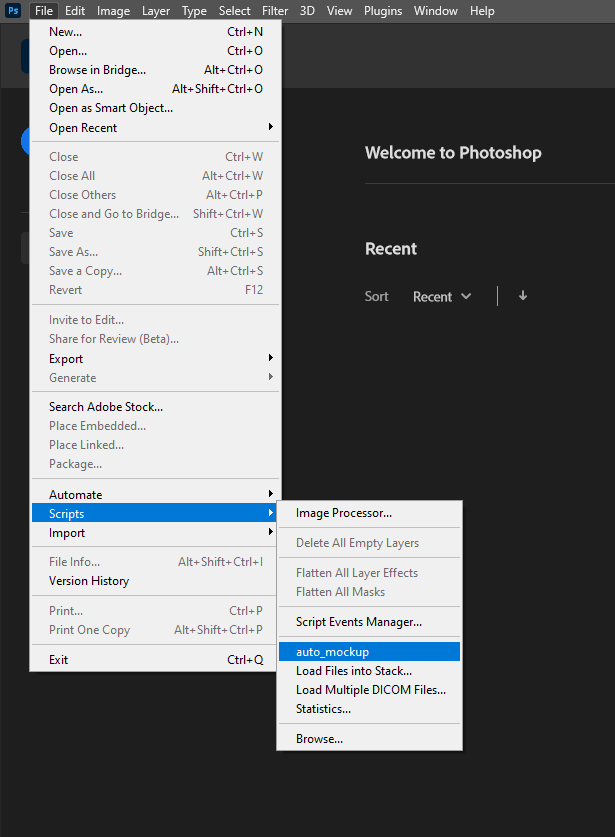
- A dialog window will appear. Use the "Select Input Folder" button to choose a folder containing the images you want to process.
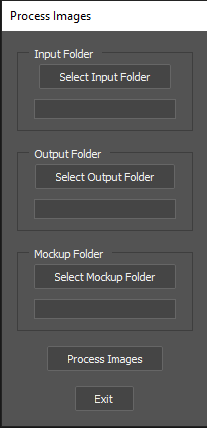
- Use the "Select Output Folder" button to choose a folder where the processed images will be saved.
- Use the "Select Mockup Folder" button to select the PSD mockup files you want to use. (Make sure that Smart Object is on Layer 1)

- Click the "Process Images" button to start processing.
- When processing is complete, an alert will appear.

The script is compatible with Adobe Photoshop CC versions. If you encounter any issues with other versions, please report them.
We welcome contributions to improve the script or add new features. Please feel free to fork the repository, make changes, and create a pull request.
This project is licensed under the MIT License. See the LICENSE file for more information.
To demonstrate the capabilities of the Photoshop Image Processor script, here's an example using a set of product images and a mockup:
Here are the product images that we want to place in the mockup:


Here's the mockup that we'll use to place the product images:


After running the Photoshop Image Processor script, here are the output images that we get:




As you can see, the script has automatically placed the product images in the mockup and saved the results in the specified output folder. This can save designers and photographers a lot of time and effort when working with multiple images and mockups.